Discover how to create lecture slides using AI to streamline your presentation design process and enhance educational engagement. Leveraging artificial intelligence tools can significantly simplify the development of visually appealing and impactful slides, saving time while enriching the learning experience. This guide explores effective methods for selecting the right AI software, preparing content, designing slides step-by-step, and refining your presentations for maximum clarity and engagement.
Overview of Using AI to Create Lecture Slides
The integration of Artificial Intelligence (AI) into the process of developing lecture slides has revolutionized educational content creation. AI tools enable educators and presenters to streamline the design process, reduce manual effort, and produce compelling visual materials that enhance student engagement. By leveraging advanced algorithms and machine learning capabilities, educators can now generate slides that are both informative and aesthetically appealing, saving valuable preparation time and ensuring consistency across presentations.
Using AI to craft lecture slides involves a harmonious blend of automated suggestions, content organization, and visual enhancements that complement traditional slide design principles. This synergy allows for faster development of comprehensive presentations while maintaining a high standard of clarity and visual appeal. Educators can focus more on content quality and pedagogical strategies, as AI handles routine tasks such as layout formatting, color selection, and image placement, leading to more dynamic and interactive educational experiences.
Benefits of AI-Enhanced Slide Creation
Implementing AI in slide creation offers numerous advantages that contribute to more effective teaching and learning experiences. These benefits include:
- Rapid generation of slide layouts and design suggestions, significantly reducing preparation time.
- Enhanced visual appeal through automatic selection of complementary color schemes, fonts, and images that align with the presentation theme.
- Content optimization features that can summarize lengthy texts, highlight key points, and suggest relevant visuals or infographics, making complex information more digestible.
- Customization options driven by AI, allowing educators to tailor content based on audience engagement data and learning objectives.
- Consistency in style and format, which helps in maintaining a professional and cohesive look throughout the presentation.
Typical Workflow Combining AI and Traditional Slide Design
Creating lecture slides using AI typically involves a strategic process that pairs automation with human oversight. The workflow begins with inputting core content—such as lecture notes, key points, or data—into an AI-powered platform. The AI then analyzes this information to generate draft layouts, suggest visual enhancements, and organize content logically. Educators review these drafts, making adjustments to ensure accuracy, clarity, and pedagogical suitability, before finalizing the slides.
This approach allows for efficient iteration, where AI handles the initial heavy lifting of design and layout, and human expertise refines the narrative and visual elements. Some platforms also incorporate real-time feedback and adaptive learning features, enabling continuous improvement based on audience interactions and engagement metrics. Overall, this hybrid workflow optimizes both creativity and productivity, leading to high-quality educational presentations with less effort and more impact.
Selecting the Appropriate AI Tools for Lecture Slide Creation
Choosing the right AI-powered presentation software is a crucial step in streamlining the creation of engaging and professional lecture slides. The proliferation of AI tools offers educators and professionals a variety of options, each with unique features, pricing models, and user experiences. Making an informed decision involves evaluating these tools based on your specific needs, technical comfort level, and compatibility with existing workflows.
Effective selection requires a clear understanding of the available options to ensure the chosen AI tool enhances productivity without compromising ease of use or quality. This section provides a comparative overview of popular AI-powered presentation software, criteria for selecting the most suitable tool, and a detailed comparison table to facilitate decision-making.
Comparison of Popular AI-Powered Presentation Software Options
Several AI-driven presentation tools have gained prominence for their ability to automate slide design, generate content, and optimize visual layouts. Here is an overview of some leading options:
- Beautiful.ai: Known for its intelligent slide design features that automatically adjust layouts to maintain visual consistency. Ideal for users seeking aesthetically pleasing slides with minimal manual effort.
- Designs.ai: Offers an AI-powered presentation maker that generates entire slide decks from brief input. It also includes branding tools and multimedia integrations, suited for marketing and educational contexts.
- Canva with Magic Write: Combines user-friendly design interface with AI content generation, making it accessible for users with varying levels of technical expertise.
- Visme: Provides advanced visualization tools and AI-driven suggestions for data representation, suitable for data-heavy lectures.
- Beautiful Slides: Focuses on automating slide creation from Artikels and notes, helping educators quickly convert content into structured presentations.
Criteria for Choosing an AI Tool Based on Features, Ease of Use, and Compatibility
To select the most appropriate AI presentation software, it is essential to consider several key factors that influence functionality, user experience, and integration with existing systems:
- Features: Assess the range of capabilities, including automated slide design, content generation, multimedia support, and data visualization. Determine if the tool offers customizable templates and AI-driven suggestions to enhance content quality.
- Ease of Use: Evaluate the user interface’s intuitiveness and the learning curve associated with the software. For educators or professionals with limited technical background, a straightforward, drag-and-drop interface may be preferable.
- Compatibility: Confirm the software’s compatibility with common file formats (such as PowerPoint, PDF, Google Slides), operating systems, and integration with other educational or productivity tools. Cloud-based solutions offer flexibility, while desktop applications may provide enhanced security and offline access.
- Pricing: Review the pricing models, including free tiers, subscription plans, or one-time purchases. Consider the value offered relative to your budget and required features.
- Security and Privacy: Ensure the platform adheres to data protection standards, especially when handling sensitive or proprietary content.
AI Presentation Software Comparison Table
Below is a comprehensive table summarizing the main features, pricing, and user ratings of popular AI presentation tools. This format allows for an easy comparison to identify the most suitable option based on individual needs.
| AI Tool | Features | Pricing | User Ratings (out of 5) |
|---|---|---|---|
| Beautiful.ai | Smart slide design, collaboration tools, customizable templates, visual consistency automation | Free tier available; Paid plans start at $12/month | 4.2 |
| Designs.ai | Automated slide generation, branding, multimedia integration, AI content creation | Starts at $29/month, with enterprise options | 4.0 |
| Canva with Magic Write | Intuitive design interface, AI content assistant, extensive template library | Free; Pro plan at $12.99/month | 4.5 |
| Visme | Data visualization, AI suggestions, interactive content, analytics | Personal plans start at $25/month; Business plans higher | 4.3 |
| Beautiful Slides | Artikel-based slide creation, automated design, content structuring | Pricing available upon request; generally affordable for educators | 4.1 |
Preparing Content for AI-Generated Slides
Effective preparation of content is essential to maximize the capabilities of AI tools in creating compelling and accurate lecture slides. Properly structured and organized input ensures that AI can generate slides that are both informative and visually engaging, reducing the need for extensive manual editing and enhancing overall presentation quality. This process involves gathering accurate lecture materials, organizing key information logically, and transforming notes into clear, AI-compatible formats.Preparing content for AI-driven slide generation requires a systematic approach to collecting and structuring lecture materials.
Begin by consolidating all relevant data, notes, and visual resources related to the lecture topic. Ensure that these materials are comprehensive, current, and free of inconsistencies. Once gathered, structure the material into distinct segments such as key points, supporting data, and visuals. This organization facilitates smoother processing by AI tools, which can better interpret well-structured inputs to produce coherent slides.
It also helps prevent information overload, enabling AI to focus on the most pertinent content for each slide.Organizing key points, data, and visuals optimally enhances the AI’s ability to generate slide content that is both clear and impactful. Use bullet points or numbered lists to delineate main ideas and supporting details. Incorporate tables for complex data sets or comparisons, which help AI recognize relationships between different pieces of information.
For visuals, prepare high-quality images or diagrams with descriptive labels, making it easier for AI to incorporate them contextually into slides. Additionally, maintaining consistency in terminology, abbreviations, and formatting throughout the source materials improves the AI’s understanding and output accuracy.Transforming lecture notes into AI-friendly explanations involves converting raw or informal notes into concise, formal statements that clearly communicate the intended message.
Summarize lengthy explanations into key sentences or bullet points, focusing on essential information. For example, instead of a detailed paragraph describing a scientific process, distill it into a step-by-step Artikel or logical sequence. Use straightforward language, avoiding jargon unless necessary, and include definitions or explanations for complex terms within the notes. Annotate notes with emphasis markers like bold or italics where critical concepts are highlighted, ensuring AI captures their importance during slide generation.
This method ensures that the generated slides will have clear, well-structured explanations suitable for educational presentations.
Designing Slides Using AI: Step-by-Step Procedures
Creating effective and visually appealing lecture slides with AI involves a systematic approach to inputting structured explanations, organizing generated content, and refining the presentation flow. This process ensures that the AI tools produce coherent, informative, and engaging slides that align with your educational objectives. By following a clear sequence of steps, educators can leverage AI’s capabilities to streamline slide development and focus more on content quality and delivery.
The procedures Artikeld below guide users through converting structured explanations into high-quality slides, organizing them into logical sequences, and exemplifying how to visualize slide content effectively. This method facilitates the creation of professional presentations that enhance student understanding and engagement.
Inputting Structured Explanations into AI Tools to Generate Slide Content
To maximize AI efficiency, it is essential to provide clear, organized, and detailed instructions when inputting explanations. Structured explanations should include key points, definitions, examples, and relevant visuals descriptions, formatted in a way that guides the AI to generate precise and targeted slide content. Using consistent language and detailed prompts ensures the AI comprehends the context and produces coherent output.
- Define the main topic and s clearly, specifying the scope of each slide to prevent ambiguity.
- Break down complex explanations into concise, digestible segments that can be assigned to individual slides.
- Include specific instructions for visuals and notes, highlighting where diagrams, charts, or key takeaways should be placed.
- Use structured prompts, such as bullet points or numbered lists, to guide the AI in generating organized content that aligns with your lecture objectives.
- Review and refine the AI-generated content for accuracy, clarity, and relevance, ensuring it reflects your instructional standards.
Organizing Generated Slides into a Coherent Presentation Flow
Once the AI produces individual slide content, the next step involves arranging these slides into a logical sequence that facilitates a smooth educational narrative. Proper organization enhances comprehension and retention by building on previously introduced concepts and leading naturally to conclusions or discussions.
- Identify the overarching story or logical progression of the lecture, such as from introduction to detailed analysis and conclusion.
- Arrange slides so that foundational concepts are presented first, followed by more complex or applied topics.
- Ensure each slide transitions seamlessly to the next, maintaining thematic consistency and avoiding abrupt topic shifts.
- Incorporate summary or review slides at appropriate intervals to reinforce key points and maintain student engagement.
- Use visual cues and slide numbering to guide the flow and facilitate navigation during the presentation.
Example of an HTML Table for Slide Content Organization
Effective presentation design benefits from a structured overview that integrates slide titles, main content, visuals, and notes. The following example demonstrates a clear layout suitable for organizing and reviewing slide elements before finalizing the presentation.
Table: Sample Lecture Slide Organization
| Slide Title | Main Content | Visuals | Notes |
|---|---|---|---|
| Introduction to AI in Education | Overview of AI applications in teaching, benefits, and potential challenges. Emphasis on improving engagement and personalization. | Diagram illustrating AI integration in classroom scenarios, such as personalized learning dashboards. | Highlight real-world examples like adaptive learning platforms and highlight the importance of ethical considerations. |
| Selecting AI Tools | Criteria for choosing appropriate AI tools, including usability, compatibility, and cost. Recommended tools include Kami, Canva AI, and Synthesia. | Comparison table showing features of each tool, with icons for ease of understanding. | Remind to consider institution-specific needs and technical infrastructure when selecting tools. |
| Preparing Content for AI | Guidelines for structuring input content, such as clear instructions, key points, and visual descriptions. Emphasizing consistency and clarity. | Sample input prompt and expected output for a sample slide on machine learning basics. | Encourage thorough review and editing to ensure accuracy and relevance of AI-generated content. |
| Designing Slides Using AI | Step-by-step process for inputting explanations, organizing slides, and refining presentation flow. Emphasizing coherence and visual appeal. | Flowchart illustrating the process from structured explanation to final slide organization. | Advise iterative review to optimize slide quality and ensure alignment with learning objectives. |
Enhancing AI-Generated Slides with Visual Elements
Creating visually engaging slides is crucial for effective communication and learner retention. When using AI to generate your lecture slides, integrating high-quality visual elements can significantly improve clarity and audience engagement. AI tools can assist in creating, customizing, and embedding various visual components seamlessly, provided you know how to specify your requirements clearly and accurately.Incorporating detailed visual descriptions allows AI to generate precise illustrations, charts, diagrams, and infographics that align with your content.
Leveraging these techniques ensures that your slides are not only informative but also visually appealing and easy to interpret, making complex concepts more accessible to your audience.
Requesting Detailed Visual Descriptions for Custom Illustrations
Effective communication with AI involves providing clear and comprehensive descriptions of the visuals you desire. When requesting custom illustrations, it is essential to specify the subject, style, context, and specific details to guide the AI in generating images that meet your expectations. Precise prompts reduce ambiguity and improve the relevance and accuracy of the visuals.For example, when requesting an illustration of a cell structure, specify the types of organelles to include, their positions, and any labels needed.
Mention the preferred art style—such as schematic, realistic, or simplified—to match your presentation’s tone. Including details about the color scheme, perspective, and scale ensures the AI creates images that are tailored to your instructional goals.
To describe visuals effectively in text form, specify the core elements clearly and concisely, emphasizing spatial relationships and key features. For instance, “A detailed schematic of a plant cell showing the nucleus at the center, surrounded by the endoplasmic reticulum and mitochondria, all labeled with distinct colors. The cell membrane forms the boundary, with a light blue background for clarity.” This detailed description guides the AI to produce a focused and informative image that aligns with your teaching objectives.
Incorporating Charts, Diagrams, and Infographics via AI
Charts, diagrams, and infographics are vital tools for distilling complex data into understandable visual formats. When integrating these elements into AI-generated slides, it is important to prepare structured data and clear instructions to ensure accuracy and coherence.AI tools can generate a variety of visual formats based on your input, such as bar charts, pie charts, flow diagrams, or hierarchical structures.
Inputting raw data in a tabular format or providing detailed descriptors helps the AI produce precise visuals. For example, supplying sales data over several quarters enables the creation of dynamic line graphs illustrating trends.To enhance your slides further, consider requesting stylized infographics that combine icons, labels, and color schemes to visualize processes or relationships. Providing a rough sketch or outlining key points for the AI to incorporate into the visual ensures your charts and diagrams are both accurate and visually compelling.
When describing charts and diagrams in text, specify the type of chart, the data points, axes labels, categories, and any particular patterns or trends you wish to highlight. For example, “A pie chart showing market share: Company A with 40%, Company B with 30%, and others with 30%. Use vibrant colors—red for Company A, blue for B, green for others—and include percentage labels directly on each segment.” Such detailed descriptions help the AI generate visuals that precisely match your instructional needs.
Customizing and Editing AI-Generated Content
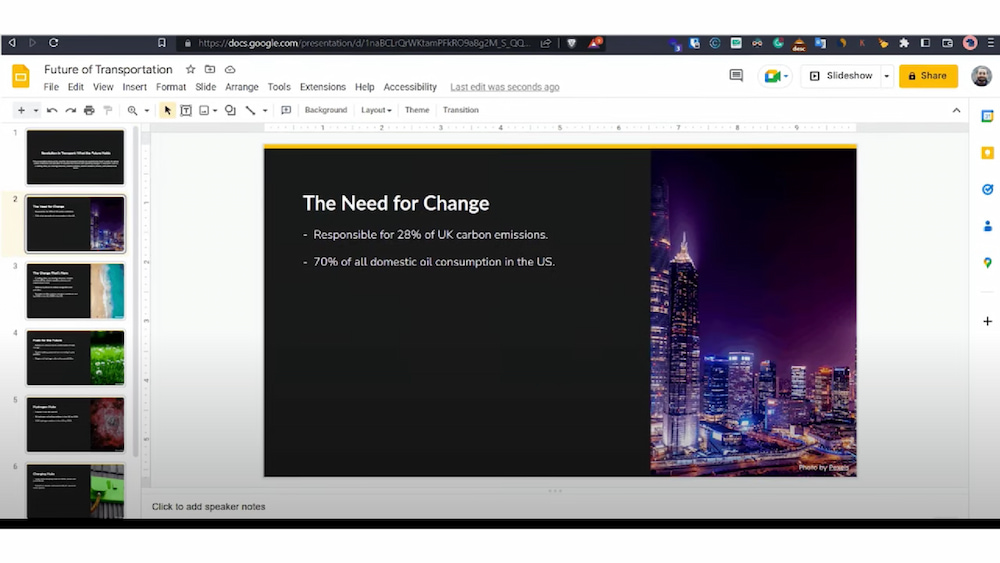
Creating high-quality lecture slides with AI technology is an efficient process, but it is essential to review and customize the content to ensure accuracy, clarity, and alignment with your teaching style. Customization allows instructors to infuse personal insights, relevant examples, and interactive elements, thereby enhancing student engagement and comprehension. This step transforms generic AI outputs into tailored educational resources that resonate with your audience and meet specific learning objectives.Effective editing not only corrects potential inaccuracies but also refines the style, tone, and structure of the slides.
By carefully reviewing AI-generated content, educators can maintain consistency with course materials and ensure that key concepts are effectively communicated. Personalization, including adding real-world examples and interactive features, enriches the learning experience and encourages active participation.
Reviewing AI-Generated Slides for Accuracy and Consistency
A thorough review process involves examining each slide for factual correctness and coherence with the course content. It is crucial to verify data, statistics, and references against credible sources to prevent dissemination of misinformation. Cross-checking terminology and concepts ensures consistency with the curriculum and standard academic standards. During this process, look for any discrepancies or ambiguities that might confuse learners.
Adjust phrasing or clarification as needed to improve understanding. Additionally, ensure that the style and tone align with your instructional approach, whether formal, conversational, or interactive.
Editing Procedures and Customization Tips
To effectively tailor AI-generated slides, follow a structured editing approach:
- Identify and correct factual inaccuracies, updating data or references as necessary based on recent research or course materials.
- Modify slide language to match your preferred tone—whether more formal or conversational—while maintaining clarity and professionalism.
- Replace generic placeholders with specific examples relevant to your discipline, such as industry case studies, historical incidents, or recent research findings.
- Enhance key points with concise summaries or emphasis using bold or italics to draw attention to critical information.
- Integrate your personal insights or experiences to foster a more engaging and relatable learning environment.
- Add interactivity elements like questions, prompts for student reflection, or embedded quizzes to encourage active participation.
- Adjust visual elements, such as font size, color schemes, or layout, to improve readability and aesthetic appeal, ensuring accessibility for all learners.
Adding Personal Insights, Examples, and Interactivity
Enriching AI-generated slides with personal insights and contextual examples bridges the gap between generic content and specific educational goals. Including real-world cases, recent developments, or industry-specific scenarios helps students connect theory to practice, thereby deepening understanding. For instance, supplementing a slide on marketing strategies with your own experience or notable campaigns can make the content more tangible.In addition, incorporating interactivity features fosters student engagement and encourages active learning.
These may include:
- Thought-provoking questions placed strategically to stimulate discussion or self-reflection.
- Interactive polls or surveys embedded within the presentation to gauge understanding or gather feedback.
- Clickable elements or embedded quizzes that challenge students to apply concepts immediately.
Using these strategies not only enhances retention but also transforms passive viewing into an active educational experience.
Organizing Editing Guidelines for Optimal Effectiveness
To streamline the editing process and ensure comprehensive customization, consider these key adjustments:
- Verify factual information against authoritative sources, updating as needed to reflect the latest data.
- Ensure clarity by simplifying complex language or breaking down intricate concepts into digestible parts.
- Maintain consistency in terminology, style, and formatting throughout all slides for a professional appearance.
- Incorporate visual aids, such as diagrams or charts, that complement and clarify textual content.
- Personalize content with relevant examples, anecdotes, or references that relate directly to your discipline or audience.
- Embed interactive elements thoughtfully, ensuring they align with learning objectives and enhance engagement.
Exporting and Finalizing Lecture Slides

Once the lecture slides have been generated and refined using AI tools, the final step involves exporting them into appropriate presentation formats that are compatible with commonly used software such as Microsoft PowerPoint, Google Slides, or Apple Keynote. Proper organization and final adjustments ensure that the presentation is professional, accessible, and easy to deliver.
Effective exporting not only preserves the design and content quality but also allows for embedding multimedia, hyperlinks, and interactive elements that enhance student engagement. This process involves selecting the right export settings, integrating additional media, and ensuring the slides are ready for delivery or distribution.
Organizing Slides into Compatible Presentation Formats
Organizing AI-generated slides into widely supported presentation formats requires attention to file compatibility and structure. Most AI tools offer default export options such as PDF, PPTX, or image sequences, but selecting the most suitable format depends on the intended use and platform.
PowerPoint (.pptx) remains the most universal format for editing, animations, and multimedia embedding. Google Slides can import PPTX files seamlessly, allowing for online collaboration. When exporting, ensure that slide order is correct, graphics are clear, and font styles are consistent, maintaining a cohesive look throughout the presentation.
Embedding Multimedia, Hyperlinks, and Interactive Elements
To enrich the lecture slides, embedding multimedia components like videos, audio clips, and interactive elements is essential. These additions facilitate active learning and cater to diverse learning styles. Embedding multimedia involves inserting files directly into slides and configuring playback options for smooth integration.
Hyperlinks can connect slides to external resources, such as articles, websites, or supplementary materials. Interactive elements like quizzes, buttons, or clickable diagrams can be added using the presentation software’s features, transforming static slides into engaging learning modules. Testing these elements ensures proper functionality before final delivery.
Sample Export Options and Their Features
| Export Option | Features | Best Used For |
|---|---|---|
| PowerPoint (.pptx) | Maintains editable slide structure, supports animations, multimedia, hyperlinks, and custom transitions. | Comprehensive editing and interactive presentations. |
| Preserves static slide design, ideal for viewing or printing; limited interactivity. | Distributing finalized slides for review or printing handouts. | |
| Google Slides | Allows easy online sharing, real-time collaboration, and basic multimedia support. | Collaborative editing and remote presentations. |
| HTML/Web format | Enables embedding in websites, supports interactive elements, multimedia, and hyperlinks. | Accessible online presentations or integrating slides into e-learning platforms. |
| Image sequence (JPEG/PNG) | Exports each slide as an image, ideal for simple galleries or visual references. | Inserting slides into other documents or creating visual summaries. |
Choosing the appropriate export format depends on the presentation’s purpose, distribution method, and the level of interactivity required. For comprehensive editing and delivery, PowerPoint remains the standard, while PDFs are suitable for fixed, uneditable distribution. Online platforms benefit from Google Slides or web-compatible formats, ensuring accessibility and collaboration.
Best Practices for Effective AI-Assisted Slide Creation
Creating engaging and clear lecture slides using AI tools can greatly enhance the learning experience. However, to maximize the benefits of AI-assisted slide creation, it is essential to adopt best practices that ensure consistency, clarity, and learner engagement. These guidelines help balance automation with thoughtful input, resulting in professional and impactful presentation materials.Effective AI-assisted slide creation requires a strategic approach that emphasizes maintaining clarity, simplicity, and audience engagement.
While AI can automate design and content generation, human oversight remains critical to ensure the slides meet pedagogical objectives and maintain a logical flow. Additionally, incorporating interactive elements and visual cues can significantly improve student attention and retention. By following established best practices, educators can leverage AI’s capabilities while preserving the personal touch and critical review necessary for high-quality educational content.
Maintaining Clarity, Simplicity, and Engagement
Clear and straightforward slides facilitate better understanding and reduce cognitive load for learners. To achieve this, focus on the following principles:
- Use concise language and bullet points to highlight key concepts, avoiding information overload.
- Limit the amount of text per slide, ideally to no more than 6 lines, with 6 words per line, to enhance readability.
- Incorporate visual elements such as charts, diagrams, and icons that complement the textual content and facilitate visual learning.
- Maintain a consistent visual style, including font choices, color schemes, and layout, to create a cohesive learning environment.
- Employ engaging multimedia elements judiciously, such as short videos or animations, to illustrate complex ideas without causing distractions.
Balancing AI Automation with Manual Input
While AI significantly accelerates slide creation, manual input is crucial for ensuring accuracy, relevance, and personalization. An optimal approach involves:
- Review and edit AI-generated content to tailor explanations to the specific audience and educational context.
- Add expert insights or real-world examples that AI may not include, enriching the slide content.
- Adjust visual layouts and multimedia elements manually to enhance clarity and aesthetic appeal.
- Ensure the logical progression of ideas by reorganizing slides if necessary, despite AI’s initial arrangement.
- Use manual annotations or highlights to emphasize critical points and guide student focus effectively.
Methods to Evaluate and Improve AI-Generated Slides
Continuous evaluation is vital to refine the quality of AI-assisted slides. Implementing review and testing methods ensures the materials are effective and accurate:
- Conduct peer reviews where colleagues or subject matter experts assess the clarity, accuracy, and engagement level of the slides.
- Gather feedback from a small group of students or stakeholders through pilot sessions to identify areas needing improvement.
- Utilize formative assessments or quizzes embedded within the slides to gauge understanding and identify content gaps.
- Employ analytics tools to track student engagement metrics, such as slide views and interaction times, to optimize future content.
- Iteratively update slides based on feedback, ensuring that revisions address identified shortcomings and incorporate innovative teaching strategies.
Last Point

In conclusion, utilizing AI for creating lecture slides offers a powerful way to produce professional and engaging presentations efficiently. By combining automated tools with your expertise, you can craft compelling educational materials that captivate your audience. Embracing these techniques ensures your lectures are both informative and visually impressive, paving the way for more effective teaching and learning experiences.