Discover how to generate infographic designs with AI to enhance visual storytelling and data presentation. Leveraging artificial intelligence streamlines the creation process, enabling users to produce compelling and professional visuals efficiently. Whether you are a beginner or an experienced designer, understanding the integration of AI tools can significantly improve your infographic development workflow.
This guide covers selecting the right AI tools, preparing data effectively, customizing AI-generated templates, and optimizing your infographics for various digital platforms. By exploring practical strategies and real-world examples, you’ll gain valuable insights into harnessing AI’s potential to create impactful visual content seamlessly.
Introduction to AI-powered infographic design
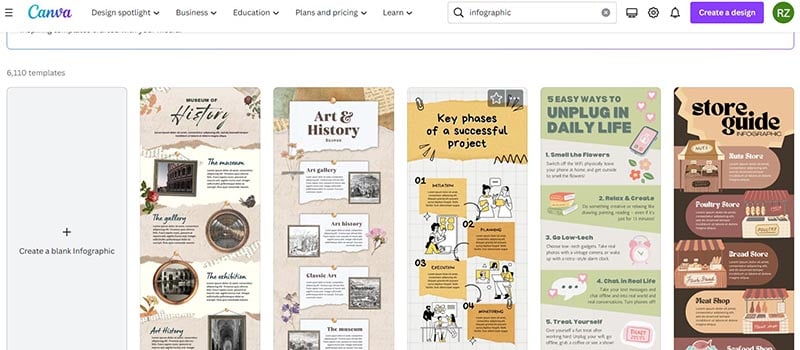
In the rapidly evolving landscape of visual data presentation, artificial intelligence (AI) has emerged as a transformative force, revolutionizing how infographics are created and optimized. AI-driven tools now enable designers and data analysts to craft compelling visual narratives with enhanced efficiency, accuracy, and creativity. This integration of advanced algorithms into the design process not only accelerates workflows but also elevates the overall quality of visual communication.
Utilizing AI in infographic design offers numerous benefits, including automated data analysis, intelligent layout suggestions, and real-time customization. These features empower users to generate professional-grade visuals without extensive design expertise, making data storytelling accessible across various industries such as marketing, education, healthcare, and finance. By harnessing machine learning, natural language processing, and image recognition, AI tools facilitate the transformation of complex datasets into engaging visual formats that resonate with audiences.
Common AI tools for infographic generation
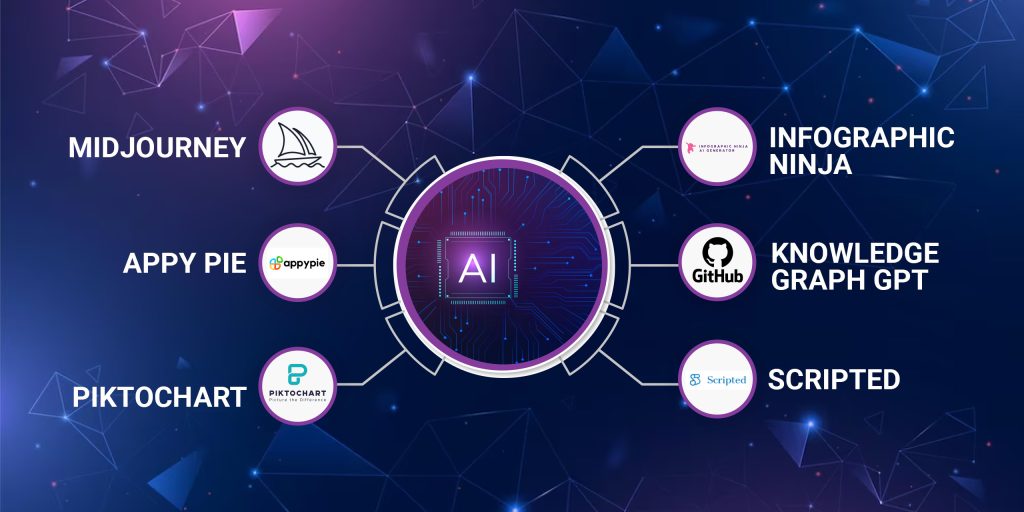
Several AI-powered applications and platforms are currently available to assist in creating infographics efficiently and effectively. These tools integrate machine learning algorithms to automate key aspects of the design process, ensuring consistency and visual appeal. Some of the most widely used AI tools include:
| Tool Name | Features | Usage Context |
|---|---|---|
| Canva with AI features | Intelligent layout suggestions, auto-resizing, and template customization | Small businesses, marketers, educators |
| Piktochart | Data import automation, visual theme recommendations, and drag-and-drop interface | Content creators, data analysts |
| Venngage AI | Automated color schemes, font pairing, and data visualization options | Corporate communications, social media teams |
| Visme AI | Smart data integration, animation suggestions, and adaptive layouts | Enterprise-level presentations, marketing teams |
These tools exemplify how artificial intelligence supports the creation of visually appealing infographics by reducing manual effort, providing data-driven design insights, and ensuring that visual elements align with storytelling goals. The increasing accessibility and sophistication of AI-powered infographic design platforms continue to democratize professional visual communication, making it attainable for users with diverse backgrounds and objectives.
Selecting AI tools for infographic creation
Choosing the appropriate AI-driven design platform is a critical step in streamlining the infographic creation process. With a variety of tools available, each offering different features, pricing models, and levels of user-friendliness, understanding these options helps ensure that your project requirements and skill levels align with the right technology. An informed selection can significantly enhance the quality, efficiency, and impact of your infographics.
Effective selection involves evaluating each platform’s capabilities, cost-effectiveness, and ease of use. This process ensures that the tool not only meets current project needs but also accommodates future scalability, collaboration possibilities, and integration with other design or data management systems. The following comparison table provides an overview of popular AI-powered infographic design platforms to facilitate this decision-making process.
Comparative table of popular AI-driven infographic design platforms
| Platform | Features | Pricing | User-Friendliness |
|---|---|---|---|
| Canva Pro | AI design suggestions, customizable templates, automated layouts, branding tools | Monthly: $12.99; Annual: $119.99 | Highly intuitive with drag-and-drop interface, suitable for beginners and professionals |
| Piktochart | AI-powered data visualization, templates for various infographic types, collaboration options | Free basic plan; Pro plans start at $24.17/month | User-friendly with guided editing, ideal for marketers and educators |
| Visme | AI content recommendations, interactive elements, extensive template library | Personal plan: $15/month; Business plan: $29/month | Accessible interface with step-by-step guides, suitable for diverse skill levels |
| Crello | AI design automation, animated templates, brand kits | Free version; Pro at $9.99/month | Simple to use, similar to Canva, with a focus on quick creation |
| Venngage | AI color palette generator, infographic templates, data import options | Basic free; Premium at $19/month | Designed for non-designers, with easy editing tools and tutorials |
Criteria for selecting an AI infographic creation tool
When determining the most suitable AI platform for your infographic projects, consider a set of essential criteria that align with your specific needs. These factors help streamline the selection process and ensure the chosen tool enhances productivity and output quality.
- Project Complexity and Customization: Assess whether the platform offers advanced customization options or is geared towards quick, simple visualizations. Complex projects requiring detailed data integration may benefit from tools with robust data visualization features.
- Ease of Use and Learning Curve: Prioritize platforms with intuitive interfaces and comprehensive tutorials, especially if team members have limited design experience.
- Pricing and Budget Constraints: Balance features with budget considerations. Free or low-cost options may suffice for basic needs, while premium plans offer enhanced functionalities for professional use.
- Collaboration and Sharing Capabilities: Ensure the tool supports team collaboration, real-time editing, and easy sharing options, vital for group projects or client presentations.
- Data Integration and Export Options: Verify compatibility with data sources and the variety of export formats (PDF, PNG, interactive HTML) to meet diverse dissemination needs.
- AI Features and Automation: Focus on platforms that leverage AI for design suggestions, data visualization, and layout automation to maximize efficiency.
Accessing and setting up AI tools for infographic design
Getting started with AI-powered infographic design tools involves a straightforward process, often similar across platforms, that ensures users can quickly commence creating impactful visuals. Initial setup includes account registration, selecting templates, and customizing settings to align with branding or project specifications.
Most platforms offer free trials or basic versions, allowing users to explore features before committing financially. To access these tools:
- Create an account on the chosen platform using an email address or social media login.
- Navigate to the dashboard and select the infographic template that best suits your project or start with a blank canvas.
- Configure account settings such as branding elements, preferred color schemes, and font choices if available.
- Leverage AI features by importing data, selecting design suggestions, or enabling automation options.
- Familiarize yourself with tutorials or onboarding guides provided within the platform to maximize usability and feature discovery.
By following these steps, users can efficiently set up their chosen AI infographic tool and begin producing compelling visual content with minimal technical hurdles, thereby enhancing overall workflow productivity and visual effectiveness.
Preparing Data for AI Infographic Generation
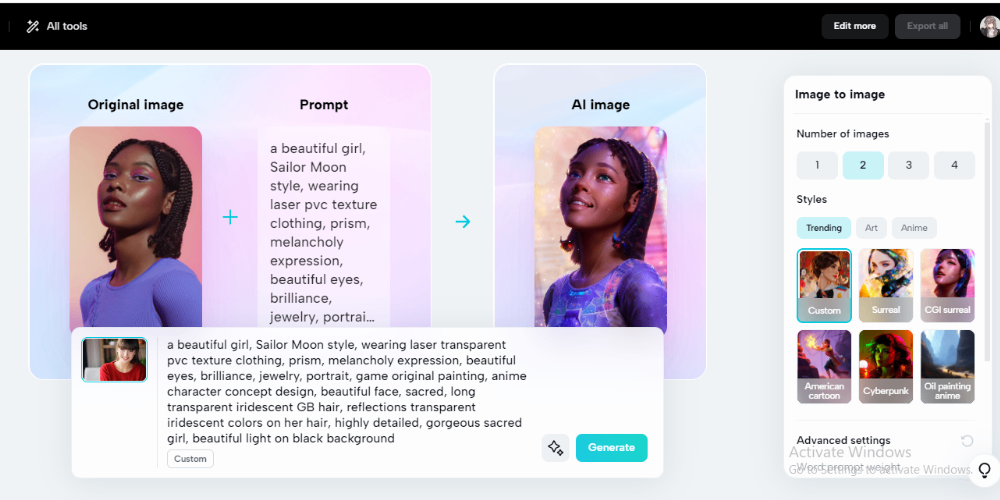
Efficient and accurate infographic creation using AI relies heavily on the quality and organization of the data provided. Preparing data properly ensures that AI tools can interpret, process, and visualize information effectively, resulting in clear, insightful, and aesthetically appealing infographics. Proper data preparation minimizes errors, enhances automation, and facilitates meaningful insights through visualization.Organizing data sets systematically is fundamental for optimal AI processing.
Well-structured data allows AI algorithms to identify patterns, extract relevant details, and generate visual elements seamlessly. Data that is inconsistent, unclean, or poorly organized can lead to inaccuracies or visual misrepresentations, undermining the infographic’s effectiveness.
Procedures for Organizing Data Sets for Optimal AI Processing
To maximize AI efficiency in infographic generation, follow these essential steps for data organization:
- Identify Data Sources: Gather all relevant data from reliable sources such as surveys, databases, spreadsheets, or APIs, ensuring clarity about the data origin and scope.
- Consolidate Data: Combine data from multiple sources into a single dataset, removing redundancies and ensuring consistency across datasets to prevent discrepancies during processing.
- Standardize Data Formats: Use uniform formats for dates, currencies, units of measurement, and categories. For example, date formats should be consistent (e.g., YYYY-MM-DD), and numerical data should follow the same decimal or thousand separator conventions.
- Segment Data into Logical Groups: Organize data into categories or segments relevant to the infographic’s focus, such as demographic groups, time periods, or geographic regions.
- Label Data Clearly: Use descriptive headers and labels for each data column or field to facilitate easy understanding and accurate visualization by AI tools.
Step-by-Step Guide for Cleaning and Structuring Data Before Input
Ensuring data cleanliness and proper structuring is crucial for deriving meaningful insights from AI-driven infographics. Follow this systematic approach:
- Remove Duplicates: Identify and eliminate duplicate entries to prevent skewed results or redundant visual elements.
- Handle Missing Data: Fill in missing values where possible using mean, median, or mode, or decide to exclude incomplete records to maintain data integrity.
- Correct Errors and Inconsistencies: Review data entries for typographical errors, inconsistent spellings, or formatting issues, correcting them to ensure uniformity.
- Normalize Data: Scale or adjust data ranges to a common scale, especially when combining different datasets, to allow fair comparison and accurate visualization.
- Convert Data Types: Ensure numerical, categorical, and date data are stored in appropriate formats compatible with AI processing requirements.
- Validate Data Accuracy: Cross-check data against original sources or benchmarks to verify precision before input.
Examples of Data Types Suited for AI-Driven Visualization
AI-infused infographic tools excel at visualizing various data types that provide meaningful insights and patterns. Common data types include:
- Numerical Data: Quantitative figures such as sales figures, population counts, percentages, and financial metrics are ideal for charts, graphs, and trend lines.
- Categorical Data: Labels such as product categories, regions, or customer segments help create pie charts, bar graphs, or categorical distributions.
- Temporal Data: Time-series data like monthly revenue, yearly growth, or quarterly performance enables the creation of line charts and trend visuals.
- Geospatial Data: Location-based datasets, including coordinates or region identifiers, support maps, heatmaps, and spatial visualizations.
- Text Data: Short text labels or tags, when processed appropriately, can be visualized through word clouds or emphasis in infographics.
Effective data preparation is the cornerstone of successful AI-powered infographic design. Ensuring that data is organized, cleaned, and appropriately formatted enhances AI capabilities, resulting in clear, insightful, and engaging visual representations of complex information.
Designing Infographics with AI Algorithms
Utilizing AI algorithms to design infographics streamlines the creative process, enabling the generation of visually compelling and data-rich graphics with minimal manual effort. By leveraging advanced machine learning models, users can transform raw data into engaging visual narratives that effectively communicate complex information. This approach not only accelerates the design workflow but also ensures consistency and innovation in infographic presentation.
AI-driven infographic design involves inputting structured data into specialized tools, customizing templates to align with branding standards, and fine-tuning parameters to achieve desired styles and layouts. These steps collectively empower users to produce professional-quality visual content tailored to specific audiences and objectives, making information dissemination more impactful and accessible.
Inputting Data into AI Tools to Generate Visual Concepts
Proper data input is critical for AI tools to accurately interpret and visualize information. Most AI infographic generators accept data in formats such as CSV, Excel, or direct integration from data management platforms. When inputting data, it’s essential to ensure that it is clean, well-organized, and labeled clearly to facilitate accurate visual mapping.
Advanced AI tools often incorporate natural language processing capabilities, allowing users to input descriptive prompts alongside structured data. For example, providing a dataset of sales figures along with a prompt like “Create an infographic illustrating quarterly revenue trends.” The AI then analyzes the data patterns and generates visual concepts such as bar charts, line graphs, or pie charts that best represent the information.
Some tools enable real-time data updates, dynamically modifying visualizations as new data is fed into the system, which is particularly useful for dashboards or ongoing reporting tasks. Ensuring compatibility of data formats and adhering to input guidelines maximizes the effectiveness of AI-generated visual concepts.
Customizing AI-Generated Templates for Branding Consistency
Customizing templates is vital for maintaining brand identity across all visual communications. AI infographic tools typically offer a variety of pre-designed templates that can be tailored to match specific branding elements such as color schemes, fonts, logos, and style preferences.
To achieve branding consistency, users should start by selecting a template that closely aligns with their desired aesthetic and then modify key visual elements. This process often involves uploading brand assets—such as logos and color palettes—and applying them to the template. Many AI tools include a style editor that allows for easy adjustments to fonts, line weights, and graphical accents to reflect brand standards.
Creating saved templates with predefined branding settings enables quick replication across multiple projects, ensuring uniformity. Additionally, some AI platforms support the creation of custom styles, which can be applied automatically to new visualizations, saving time and upholding consistency in visual language.
Adjusting Parameters to Influence Infographic Styles and Layouts
Fine-tuning parameters within AI tools provides control over the stylistic and structural aspects of infographics. Adjustments can influence layout density, color schemes, data emphasis, and overall visual hierarchy, allowing for tailored outputs that meet specific design goals.
Most AI infographic generators incorporate adjustable settings such as layout orientation (vertical or horizontal), chart types, color contrast, and data point emphasis. For example, increasing the prominence of certain data categories can be achieved by adjusting size or color intensity parameters, guiding viewers’ focus intuitively.
Parameter tweaking often involves a combination of sliders, input fields, or preset options. For instance, if a user desires a minimalist style, they can reduce the number of graphical elements and opt for a clean layout with ample whitespace. Conversely, a detailed technical report might require complex layouts with multiple data layers, which can be achieved by increasing complexity settings.
It is essential to iteratively preview and refine these parameters to balance clarity, aesthetic appeal, and effectiveness in communication. Many AI tools also offer style presets based on industry standards, which can serve as starting points for customization.
Enhancing AI-generated infographics
While AI tools significantly streamline the creation of engaging infographics, optimizing and refining these outputs is essential to achieve a professional and visually appealing result. Enhancing AI-generated designs involves applying various techniques to improve clarity, balance, and aesthetic harmony, ensuring the final infographic effectively communicates its intended message.
Integrating human creative input with AI suggestions allows for a tailored approach that leverages the strengths of both. It ensures that the infographic not only benefits from AI’s efficiency but also maintains a unique, creative touch that resonates with the target audience. Customizing color schemes, icons, and typography—either manually or through automated features—further personalizes the design, elevating its overall quality and impact.
Refining AI outputs for clarity and visual appeal
Refining AI-generated infographics involves scrutinizing the initial outputs and making adjustments to enhance their readability and attractiveness. This process can include simplifying complex data visualizations, adjusting layout elements for better flow, and ensuring that key insights are immediately noticeable. Using visual hierarchy principles—such as size, contrast, and placement—helps guide viewers’ attention to the most important information.
It’s beneficial to review the design for consistency in style, spacing, and alignment. Small tweaks, like increasing font size for headings or reducing clutter through selective removal of less critical data points, can significantly improve clarity. Employing feedback from colleagues or target users can provide valuable insights into areas needing refinement, ensuring the infographic effectively communicates its purpose.
Integrating human creative input with AI suggestions
Combining human creativity with AI suggestions allows for a balanced and personalized design process. Human input can fine-tune elements such as layout, visual storytelling, and emphasis on key messages that AI might overlook. For example, a designer might reposition certain data points or choose specific icons that better represent the content’s tone and context, ensuring alignment with brand identity or audience preferences.
During this integration, it is important to evaluate AI suggestions critically, selecting elements that enhance understanding and aesthetic value. Iterative adjustments—such as modifying the size of icons, adjusting spacing, or emphasizing particular data segments—help create a cohesive and engaging visual presentation that resonates with viewers.
Incorporating color schemes, icons, and typography
Enhancing infographics often involves customizing visual elements like color schemes, icons, and typography to align with branding or thematic goals. These adjustments can be made manually or through automated features within AI tools, providing flexibility and efficiency.
For color schemes, selecting palettes that ensure sufficient contrast and are accessible to individuals with visual impairments improves readability. Many AI tools offer automatic color palette suggestions based on the data or theme; however, manual adjustments can better reflect brand colors or emotional tone. Icons should be chosen for clarity and relevance, helping to illustrate concepts more vividly. Typography adjustments—such as font choice, size, and weight—are crucial for emphasizing key points and maintaining visual hierarchy.
Using
consistent color palettes, visually intuitive icons, and legible typography enhances the overall quality of the infographic, making it more engaging and easier to interpret. Automating some of these processes via AI can save time, but manual fine-tuning ensures the design aligns perfectly with the intended message and audience expectations.
Exporting and Embedding AI-Infographic Designs
Creating visually compelling infographics with AI tools is only part of the process; effectively exporting and embedding these visuals into various platforms ensures maximum accessibility and impact. Properly managing these steps enhances the presentation’s professionalism and user engagement. This section provides a comprehensive overview of the best practices for exporting AI-generated infographics, embedding them into websites or presentations, and optimizing files for web use, ensuring your designs reach and resonate with your target audience effectively.
Efficiently exporting and embedding infographics involves selecting the appropriate formats and methods tailored to the intended platform. Whether for online sharing, embedding in web pages, or inclusion in slideshows, understanding the available options and optimization techniques is crucial for maintaining visual fidelity and performance.
Formats for Exporting Infographics from AI Platforms
AI-powered infographic tools typically support a variety of formats, each with specific advantages suited to different usage contexts. Selecting the right format ensures the infographic maintains its quality, loads efficiently, and remains compatible across platforms.
- PNG (Portable Network Graphics): Ideal for high-quality images with transparent backgrounds, PNG files preserve detailed visuals and are widely supported in web and print media.
- JPEG/JPG (Joint Photographic Experts Group): Suitable for photographs or images with complex color gradients; JPEGs offer smaller file sizes at the expense of some quality loss.
- SVG (Scalable Vector Graphics): Predominantly used for vector-based infographics, SVGs are resolution-independent, making them ideal for responsive web design and high-resolution displays.
- PDF (Portable Document Format): Best for high-quality print purposes or sharing static infographics that require precise formatting, including multi-page documents.
- HTML/CSS: Some advanced tools allow exporting as web-ready code, enabling dynamic infographics embedded directly into web pages with interactivity.
Choosing the correct format depends on the final use case. For online sharing and embedding, PNG, JPEG, and SVG are most common, with SVG being preferred for scalability and responsiveness. For print, PDF remains the standard, ensuring high-resolution output suitable for professional printing standards.
Embedding Infographics into Websites or Presentations
Embedding AI-generated infographics into digital platforms enhances accessibility and user engagement. Proper embedding techniques ensure seamless integration and optimal display across devices and screen sizes.
| Platform | Embedding Method | Description |
|---|---|---|
| Websites | <img> Tag | Embedding static images like PNG, JPEG, or SVG directly into HTML using the <img> tag allows straightforward integration. For example: <img src=”path/to/infographic.svg” alt=”Infographic”>. |
| Websites | <div> Container with background-image | Using a <div> with CSS background-image enables more control over positioning, overlays, and responsiveness, particularly for complex layouts. |
| Presentations | Insert image files directly into slide decks | Most presentation software allows inserting images via the insert image feature, maintaining high quality and ensuring easy updates. |
For dynamic web content, embedding SVGs with inline code or via object/embed tags offers interactivity, while static images are optimal for straightforward inclusion.
Using responsive HTML techniques, such as setting width to 100% and height auto, ensures infographics adapt smoothly to different screen sizes. For presentations, embedding high-resolution images ensures clarity, especially on large displays.
Best Practices for Optimizing Infographic Files for Web Use
Optimizing infographic files for web performance is vital to ensure fast load times without compromising visual quality. These practices improve user experience and help maintain website performance metrics.
- Compress images: Use tools like TinyPNG or ImageOptim to reduce file sizes while preserving quality, especially for PNG and JPEG formats.
- Use appropriate resolution: For web displays, 72-150 DPI is sufficient; avoid unnecessarily high resolutions that inflate file sizes.
- Leverage vector formats: SVG files are inherently optimized for scalability and often smaller in size for simple graphics, making them ideal for web use.
- Implement lazy loading: Load infographics only when they enter the viewport to improve page load speeds.
- Use caching headers: Configure server settings to cache static image files, reducing load times for repeat visitors.
Ensuring proper file optimization not only enhances website speed but also reduces bandwidth consumption, providing a smoother experience for users on all devices.
Implementing these best practices guarantees that your AI-generated infographics are visually appealing, fast-loading, and seamlessly integrated into your digital content, maximizing their communicative and aesthetic potential.
Case Studies and Practical Applications
Real-world examples of AI-generated infographics demonstrate the transformative potential of artificial intelligence in visual communication. These case studies highlight how organizations across various industries leverage AI tools to create compelling, data-driven visuals that enhance understanding, engagement, and decision-making.
By analyzing successful implementations, professionals can identify best practices, recognize the types of projects best suited for AI assistance, and understand potential challenges with their solutions. This insight supports informed decision-making when integrating AI into infographic design workflows, ultimately leading to more efficient and impactful visual storytelling.
Successful AI-Generated Infographic Examples
Several organizations have effectively utilized AI tools to produce impactful infographics. For example, a healthcare analytics firm used AI algorithms to generate patient outcome visualizations from complex datasets, enabling clinicians to quickly interpret treatment efficacy. Similarly, a financial services company employed AI-driven design platforms to create real-time market trend visuals for investor reports, significantly reducing production time and improving clarity.
In the public sector, government agencies have adopted AI-powered tools to visualize demographic data, facilitating better public understanding of policy impacts. These cases exemplify how AI can enhance the accuracy, creativity, and speed of infographic production across sectors.
Comparison of Project Types and Suitable AI Tools
Different infographic projects require specific AI solutions to maximize efficiency and quality. Understanding the nature of the project allows for optimal tool selection, ensuring the final visualization meets goals effectively.
| Project Type | Description | Recommended AI Tools |
|---|---|---|
| Data-Driven Business Reports | Visual representations of complex datasets for strategic decision-making, often requiring automation and real-time updates. | Tableau with AI features, Power BI with AI integrations, DataRobot |
| Marketing and Social Media Graphics | Engaging visuals for campaigns that need quick creation and high aesthetic appeal. | Canva with AI-powered design suggestions, Adobe Spark, Snappa |
| Educational Content and Data Visualization | Clear, concise visuals simplifying complex concepts for learning purposes. | Visme, Piktochart, Infogram with AI-assisted templates |
| Public Policy and Demographic Data | Visualizations that communicate societal trends or policy impacts to diverse audiences. | Infogram, Flourish, RAWGraphs |
Choosing the appropriate AI tool depends on project complexity, data volume, desired aesthetics, and real-time updating needs. Matching project type with suitable solutions ensures efficiency and effectiveness in infographic creation.
Potential Challenges and Solutions in AI-Generated Infographic Creation
While AI offers significant advantages, its application in infographic design also presents specific challenges that require careful management. Understanding common obstacles and implementing practical solutions helps streamline the process and enhances the quality of final outputs.
- Data Quality and Consistency: AI algorithms rely heavily on accurate, well-structured data. Inconsistent or incomplete data can lead to misleading visuals.
- Solution: Prioritize thorough data cleaning and validation before feeding data into AI tools. Incorporate manual review stages to verify AI outputs.
- Design Limitations: AI-generated designs may sometimes lack the nuance or creativity needed for specific branding or style requirements.
- Solution: Use AI as a starting point or assistive tool, then refine designs manually to align with branding guidelines and aesthetic preferences.
- Technical Complexity and Learning Curve: Advanced AI tools may require technical expertise that can hinder adoption.
- Solution: Invest in training and user-friendly interfaces; select tools with intuitive workflows to facilitate broader team adoption.
- Ethical and Bias Considerations: AI models trained on biased data can produce skewed visualizations, potentially misrepresenting information.
- Solution: Regularly audit AI models and datasets for bias, and incorporate human oversight to ensure accuracy and fairness in visual representations.
By recognizing these challenges and applying targeted solutions, organizations can effectively harness AI technologies to produce high-quality, accurate, and engaging infographics that serve their communication objectives efficiently.
Conclusion
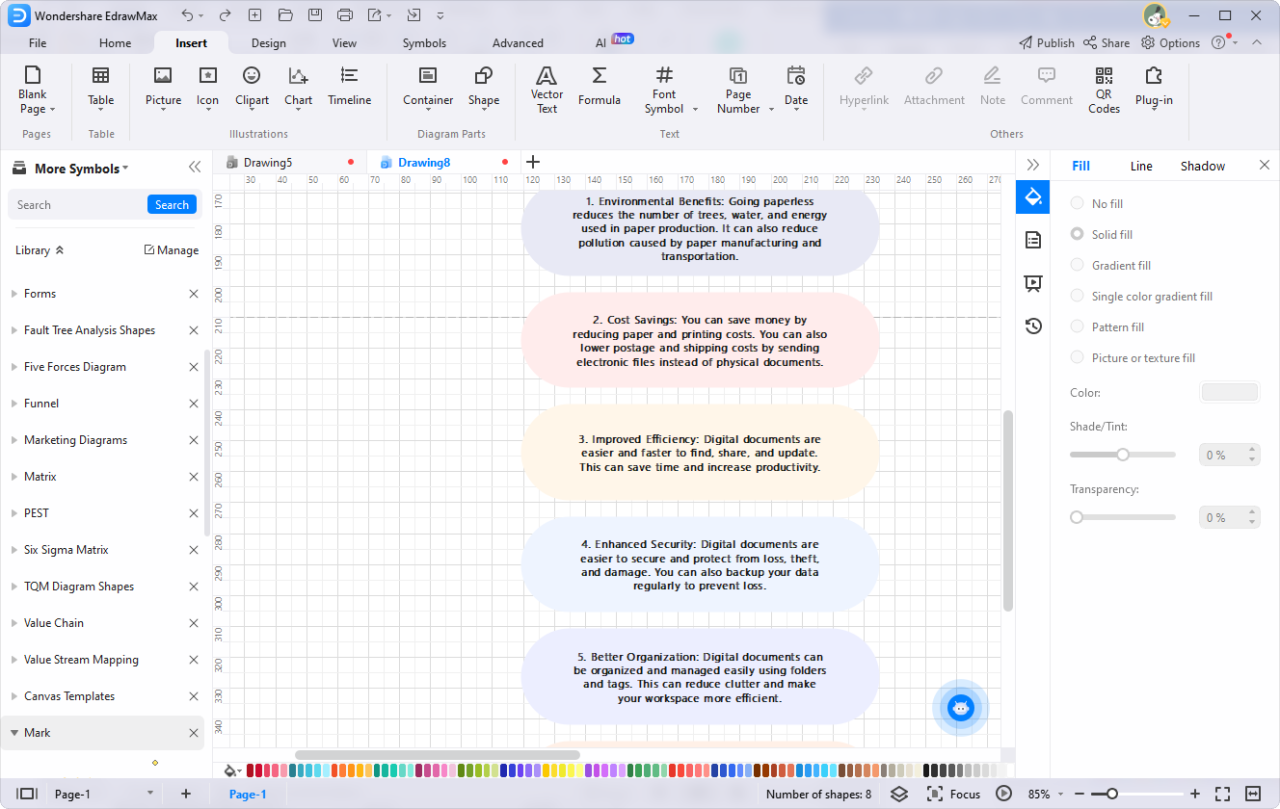
In summary, mastering how to generate infographic designs with AI empowers creators to produce visually appealing and data-driven visuals with ease. Combining innovative AI technology with your creative expertise leads to more engaging and professional infographics. Embracing these tools not only saves time but also opens new possibilities for impactful visual communication across diverse projects.