Discovering how to generate bar charts for presentations using AI opens up new avenues for creating visually compelling and informative data displays with ease. Leveraging artificial intelligence tools streamlines the process, allowing users to transform raw data into polished visualizations rapidly, which can significantly elevate the quality and impact of your presentations.
This guide explores the latest AI-powered platforms and step-by-step procedures that make designing customized, aesthetically appealing, and engaging bar charts more accessible than ever. From initial data input to final integration, you’ll learn how AI enhances every stage of creating effective visual data representations for professional settings.
Overview of AI tools for generating bar charts for presentations
Artificial Intelligence has revolutionized the way data visualizations are created, making it more accessible and efficient for users across various domains. When preparing presentations, especially those involving complex data sets, leveraging AI-powered tools can significantly enhance the clarity and impact of visual representations like bar charts. These tools automate the process of designing, customizing, and updating charts, allowing presenters to focus more on the message rather than the technicalities of visualization.
AI-driven platforms have introduced innovative features such as automatic data interpretation, style suggestions, and real-time customization, which streamline the creation of visually appealing and informative bar charts. By integrating machine learning algorithms, these tools can analyze data patterns and recommend optimal visualization formats, color schemes, and labels. This automation not only accelerates the workflow but also improves the overall presentation quality, ensuring that the data is communicated effectively and professionally.
Popular AI-powered platforms and software for bar chart creation
There is a diverse array of AI-enabled platforms designed to facilitate the generation of bar charts for presentations. These platforms vary in complexity, features, and integration capabilities, catering to different user needs ranging from casual presenters to data analysts.
| Platform/Software | Features | Suitability |
|---|---|---|
| Microsoft Power BI | AI-driven data analysis, automatic chart suggestions, seamless integration with Office suite | Business professionals, data analysts |
| Google Data Studio | Smart data connectors, AI-powered insights, customizable templates | Marketers, educators, casual users |
| Tableau with Einstein Analytics | Advanced AI recommendations, predictive analytics, interactive dashboards | Data scientists, enterprise users |
| Beautiful.ai | Intelligent design suggestions, auto-alignment, theme consistency | Presenters, marketers, educators |
| Canva with AI features | Design templates, AI style recommendations, easy drag-and-drop interface | Students, small businesses, casual users |
These platforms leverage AI to automate repetitive tasks such as selecting appropriate chart types, adjusting layouts, and applying aesthetic enhancements. By doing so, they help users produce professional-looking bar charts rapidly, ensuring data is presented in a clear, engaging manner that resonates with the audience.
“AI tools for data visualization simplify complex processes, enabling even non-experts to craft insightful and visually compelling bar charts for their presentations.”
Steps to generate a bar chart using AI-powered applications
Creating a bar chart with AI tools streamlines the visualization process, making it easier and more efficient to present data insights. Understanding the systematic approach to input data, select design elements, and customize the visualization ensures a professional and visually appealing result suitable for presentations. This section Artikels the essential steps to leverage AI applications effectively for generating bar charts.Generating a bar chart with AI-powered applications involves a structured process that maximizes automation and customization.
Users typically begin by inputting or uploading their data, which can range from simple spreadsheets to complex datasets. Most AI tools support various file formats like CSV, Excel, or direct data entry, allowing for flexibility in data preparation. Once the data is uploaded, the AI system automatically analyzes it and suggests initial visualization options based on the data structure and content.Selecting chart styles, colors, and layouts within AI interfaces is crucial for tailoring the visualization to the presentation’s theme and audience.
Most AI applications feature an intuitive interface with options to choose predefined styles—such as minimalistic, colorful, or professional templates—that align with the presentation context. Users can also customize color schemes to match brand colors or emphasize specific data points, utilizing color pickers or preset palettes. Layout options, including orientation (horizontal or vertical bars), spacing, and gridlines, can be adjusted to improve clarity and aesthetic appeal.
These features enable quick experimentation and enable users to find the most impactful visual design with minimal effort.Customizing bar charts with labels, legends, and annotations ensures clarity and enhances the interpretability of the data. Within the AI interface, users can add descriptive labels to axes, specify units, and define titles that accurately reflect the data being presented. Legends can be automatically generated or manually customized to clarify data series, especially when multiple datasets are displayed.
Annotations, such as highlighting specific bars or adding notes, can be inserted directly into the visualization to draw attention to key insights. These customizations often involve simple drag-and-drop tools or input fields, making it accessible even for users with limited technical expertise.In summary, the process of generating a bar chart using AI tools involves careful data input, strategic selection of visual styles, and precise customization to create compelling and clear visualizations for presentations.
Leveraging these steps ensures that the resulting chart effectively communicates the intended message and enhances the overall quality of your presentation.
Designing Effective Bar Charts for Presentations with AI Assistance

Creating compelling and clear bar charts is essential for effective data communication in presentations. Leveraging AI tools streamlines this process by enabling precise design choices, automatic customization, and enhanced visual appeal. With intelligent assistance, presenters can craft bar charts that not only accurately represent data but also engage their audience through aesthetic excellence.
Effective design involves selecting the appropriate chart type, optimizing color schemes, and seamlessly integrating branding elements. AI-powered applications facilitate these tasks by analyzing data characteristics, suggesting the most suitable visual formats, and applying consistent design principles aligned with branding guidelines. This integration ensures that each chart effectively conveys the intended message while maintaining visual harmony within the presentation.
Choosing the Most Suitable Bar Chart Type for Data Clarity
Choosing the right bar chart type is fundamental to enhancing data clarity and viewer comprehension. AI tools analyze the data structure to recommend the most effective representation—whether it is a simple vertical or horizontal bar chart, stacked bars for part-to-whole comparisons, or grouped bars for side-by-side data points.
For example, when visualizing sales data across multiple regions over time, stacked or grouped bar charts improve comparative analysis and trend recognition. Conversely, for ranking categories such as product performance, a basic vertical bar chart may suffice. AI applications can automatically suggest these options based on the data’s nature, ensuring that the presentation communicates information in the most accessible manner.
Optimizing Color Schemes and Design Aesthetics with AI Features
Color schemes significantly impact the readability and visual appeal of bar charts. AI-powered design tools analyze factors such as color contrast, color-blind friendliness, and visual harmony to recommend optimal palettes. These features help ensure that charts are accessible to all viewers and align with professional aesthetics.
For instance, AI can suggest a color palette that differentiates data series clearly while maintaining harmony with the overall presentation theme. It can also adapt colors to suit various display environments, such as projector or screen viewing, to prevent visual fatigue or misinterpretation. Techniques like gradient fills or subtle shading can be automatically applied to add depth, making charts more engaging without sacrificing clarity.
Effective color schemes not only enhance visual appeal but also improve data comprehension by guiding the viewer’s focus and reducing cognitive load.
Incorporating Branding Elements and Visual Themes Automatically
Maintaining brand consistency across presentations is crucial for professionalism and recognition. AI-driven tools facilitate the automatic incorporation of branding elements, such as logos, brand colors, and font styles, into bar charts. This ensures that each visual component aligns seamlessly with the overall corporate identity.
For example, an AI application can detect the presentation’s existing visual theme and apply corresponding color codes and fonts to new charts. It can also embed logos subtly within the chart area or footer, ensuring branding is visible yet unobtrusive. Additionally, AI can generate templates with predefined design standards, allowing users to quickly produce uniform, branded charts suited for different presentation contexts—be it sales reports, marketing pitches, or academic seminars.
Enhancing presentation impact with AI-generated bar charts
Utilizing AI-driven tools to generate and refine bar charts significantly elevates the effectiveness of presentations. These advanced applications not only streamline the creation process but also enhance visual appeal and clarity, ensuring your data resonates more compellingly with your audience. Leveraging AI in visualization empowers presenters to communicate complex information with greater precision and engagement.
AI can play a pivotal role in optimizing visual elements of bar charts, providing automatic suggestions for color schemes, data labeling, and layout adjustments. This assists presenters in crafting visuals that are both aesthetically pleasing and easy to interpret. In an era where audience engagement is crucial, AI-enhanced charts help capture attention and facilitate better understanding, making your message more memorable and impactful.
Suggestions for visual improvements to boost audience engagement
In the realm of presentation visuals, clarity and attractiveness are paramount. AI tools can analyze your initial chart and recommend enhancements such as contrasting color palettes to differentiate data series effectively, font adjustments for readability, and highlighting key data points. These suggestions ensure the chart communicates its message without unnecessary clutter or confusion.
Additionally, AI can identify the most impactful ways to present data based on audience demographics or context. For instance, it might suggest emphasizing trend lines for business growth over multiple periods or using vibrant colors to highlight critical data segments for a sales pitch. These tailored recommendations help maintain the audience’s interest and emphasize the most pertinent insights.
Comparison between traditional manual design and AI-automated customization
The traditional approach to designing bar charts involves manual selection of colors, layout, labels, and other visual elements, often requiring extensive time and iterative adjustments. This process depends heavily on the designer’s experience and subjective judgment, which can sometimes lead to inconsistent or suboptimal visuals.
In contrast, AI-automated customization harnesses algorithms to analyze data and automatically generate optimized visual layouts. This includes selecting appropriate color contrasts, adjusting spacing for clarity, and integrating branding elements seamlessly. AI can adapt charts in real-time based on feedback or new data, significantly reducing design time and improving consistency. The automation ensures that even non-designers can produce professional-quality visuals that are tailored to their presentation context, leading to more polished and effective communication.
Seamless integration of AI-produced charts into presentation slides
Integrating AI-generated bar charts into presentation slides is straightforward and highly adaptable. Most AI tools allow exporting charts directly into common presentation formats, such as PowerPoint or Google Slides, often with built-in compatibility. These charts can be inserted as static images or linked objects that update dynamically when data changes.
For example, an AI tool can output a high-resolution chart that fits perfectly within slide layouts, respecting margins and design themes. Presenters can embed these visuals alongside text, annotations, or additional data points to enhance storytelling. Moreover, AI tools often support customization post-insertion, enabling fine-tuning of colors, labels, or animations directly within the presentation platform, ensuring a seamless and professional look that aligns with the overall presentation style.
Advanced features of AI tools for bar chart creation
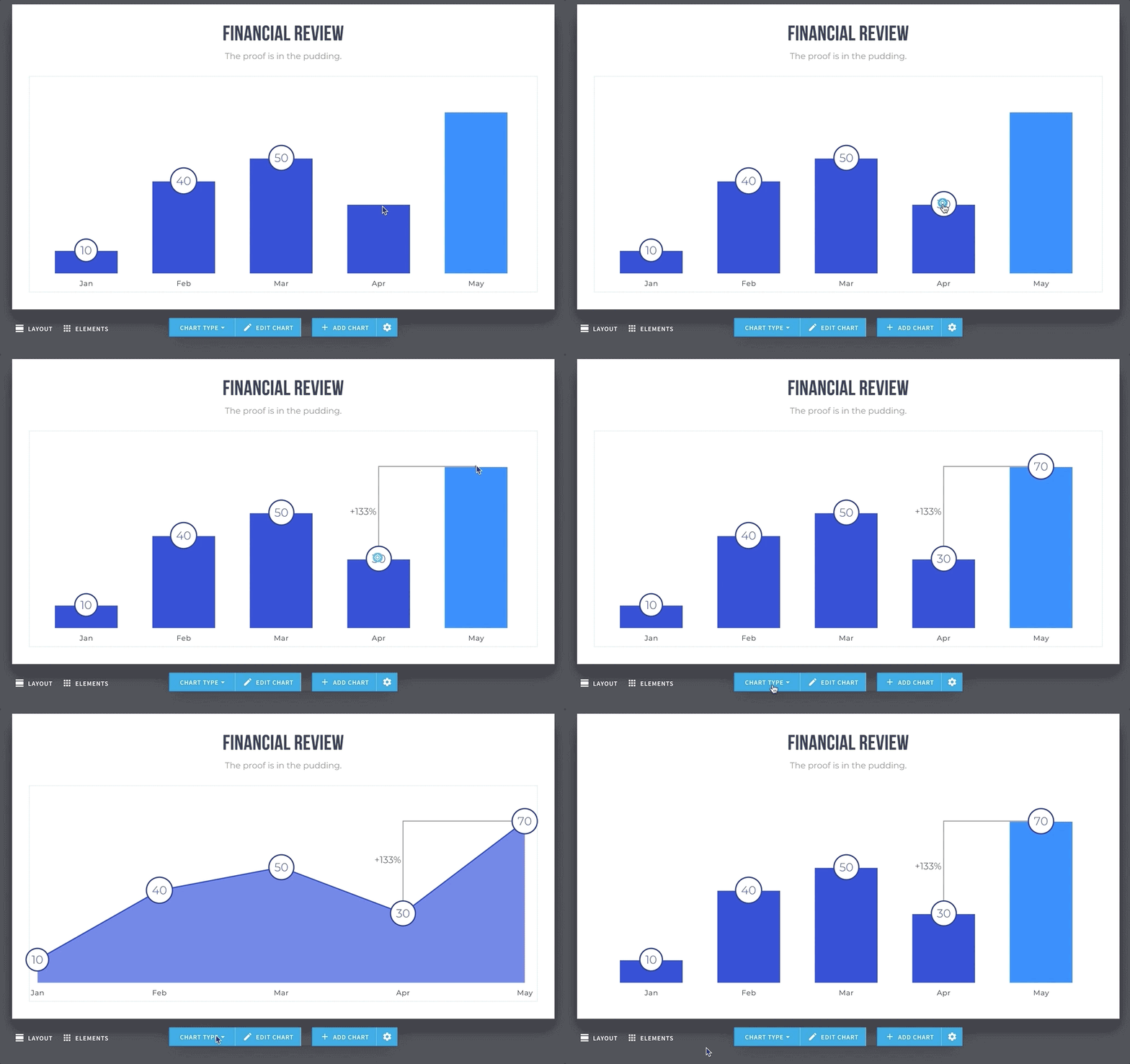
Modern AI-powered tools for data visualization have evolved beyond basic chart generation, offering sophisticated features that significantly enhance the effectiveness and interactivity of presentations. Leveraging these advanced capabilities allows users to create compelling, dynamic, and insightful visualizations that can adapt to complex data scenarios and audience needs. Understanding these features enables presenters and data analysts to maximize the potential of AI in crafting impactful visual stories with bar charts.
These advanced functionalities include overlaying multiple data sets within a single bar chart, facilitating real-time data updates, integrating dynamic visualization elements, and creating interactive or animated charts. Such features not only streamline the visualization process but also enable more engaging and informative presentations that can respond to live data streams and user interactions. As a result, presenters can deliver more compelling narratives backed by rich, multidimensional data representations.
Overlaying multiple data sets within a single bar chart
One of the key capabilities of AI tools is the ability to overlay multiple data sets within a single bar chart, which facilitates comparative analysis and multi-dimensional insights. This feature is particularly useful when presenting related metrics, such as sales performance across regions and product categories simultaneously. AI algorithms simplify the process of layering these data sets by automatically adjusting bar widths, colors, and positions to ensure clarity and visual appeal.
AI tools often incorporate intelligent data normalization and scaling techniques to ensure that multiple data sets are represented accurately, even when their value ranges differ significantly. For example, a sales report might compare revenue, profit margins, and units sold for a series of products within the same chart, with AI ensuring each data set is distinguishable and properly aligned for easy interpretation.
The overlay can be designed as grouped bars or stacked bars, depending on the analytical focus.
Techniques for dynamic updates and real-time data integration
In today’s data-driven environment, the ability to update visualizations dynamically with real-time data is invaluable. AI tools facilitate seamless integration with live data sources, such as databases, APIs, or IoT sensors, enabling bar charts to reflect the most current information without manual intervention. This capability is crucial for applications like financial dashboards, live sales tracking, or operational monitoring.
AI employs techniques like data streaming, incremental learning, and adaptive rendering to ensure that visualizations are continuously refreshed with minimal latency. For instance, a bar chart displaying live website traffic can automatically update every few seconds to show current visitor counts, providing immediate insights for decision-makers. Additionally, AI can intelligently filter or highlight significant data changes, ensuring that viewers focus on relevant updates while reducing visual clutter.
Enabling interactive or animated bar charts for presentations
Interactivity and animation significantly enhance viewer engagement and understanding when presenting bar chart data. AI tools enable the creation of interactive visualizations that viewers can explore through features like tooltips, drill-downs, and clickable elements. Animations can be used to transition between data states smoothly, illustrating trends, growth, or declines over time with visual dynamism.
For example, an animated bar chart can illustrate quarterly sales growth, with bars dynamically expanding or contracting to demonstrate performance changes. Interactive features might allow audiences to select specific regions or products to compare in detail, with AI managing the transitions and data retrieval seamlessly. Such capabilities are especially effective in virtual presentations or dashboards where user engagement is critical for conveying complex insights effectively.
Best practices for exporting and embedding AI-generated bar charts
Creating visually appealing and high-quality bar charts is essential for effective presentations. Once AI tools generate these charts, proper exporting and embedding techniques ensure that they integrate seamlessly into your presentation, maintaining clarity and professionalism. This process involves choosing appropriate formats, resolutions, and embedding methods compatible with your presentation platform, thereby enhancing audience engagement and comprehension.Effective exporting and embedding of AI-generated bar charts require attention to detail to preserve visual integrity across various devices and presentation environments.
Selecting the correct file formats and resolutions prevents loss of quality, while understanding platform-specific embedding procedures guarantees smooth integration. These best practices help presenters deliver impactful visuals without technical disruptions, ensuring your data storytelling remains compelling and clear.
Exporting high-resolution images or vectors
The quality of exported visuals significantly affects the overall presentation impact. When exporting AI-generated bar charts, prioritize high-resolution images or vector formats to maintain clarity, especially when resizing or projecting onto large screens. Use the following procedures:
- Choose the export option within the AI tool, typically found under “Download” or “Export”.
- Select a high-resolution image format such as PNG or TIFF for raster graphics, which support detailed visuals.
- Opt for vector formats like SVG, PDF, or EPS for scalable graphics that retain crispness regardless of size adjustments.
- Set the resolution to at least 300 DPI (dots per inch) for print-quality visuals or 150 DPI for digital screens, depending on your presentation needs.
- Verify the exported file’s resolution and clarity by opening it in an appropriate viewer before embedding it into your presentation.
High-resolution exports prevent pixelation and ensure your bar charts look professional and clear on all display sizes.
Embedding charts into various presentation platforms
Embedding AI-generated bar charts across different presentation software involves platform-specific steps that optimize visual fidelity and functionality. Each platform may offer unique tools and options for inserting images or vectors, so understanding these processes improves workflow efficiency.The typical steps include:
- Open your presentation software, such as Microsoft PowerPoint, Google Slides, or Apple Keynote.
- Navigate to the slide where you want to embed the chart.
- Use the ‘Insert’ menu to select ‘Image’ or ‘Picture’.
- Browse to locate your exported high-resolution image or vector file and insert it into the slide.
- Adjust the size and position as needed, ensuring the aspect ratio remains consistent to avoid distortion.
- If using vector formats like SVG in compatible platforms, you may directly edit or scale the chart without quality loss.
- Confirm that the embedded chart appears crisp and clear in preview mode before finalizing the presentation.
Additional tips include:
- For platforms supporting direct vector embedding, prefer SVG or PDF files to maximize flexibility.
- Save a backup of your exported files in multiple formats to ensure compatibility if switching between presentation tools.
- Use the ‘Compress Pictures’ feature cautiously; ensure it does not compromise the resolution of your bar charts.
Compatibility options for AI-created visuals with common presentation software
Ensuring compatibility between AI-generated visuals and presentation software minimizes technical issues and maintains visual integrity. Compatibility depends on file formats, software capabilities, and version updates.Key considerations:
- Preferred formats include PNG and JPEG for raster images; SVG, PDF, and EPS are ideal for vector graphics due to their scalability.
- Most modern presentation platforms support PNG and JPEG files natively, with some offering SVG support for scalable and editable graphics.
- In Microsoft PowerPoint, embedding SVG files allows for direct editing of colors and styles within the software, offering customization options without quality loss.
- Google Slides has limited SVG support but allows uploading and displaying these files, though editing options are limited.
- Always verify the version compatibility of your presentation software with the exported file format to prevent display issues.
- For maximum flexibility, consider exporting in a universally compatible format, such as PNG, and retain original vector files for future edits.
By adhering to these compatibility practices, presenters can ensure that AI-generated bar charts integrate seamlessly into their slides, providing a polished and professional appearance that effectively supports their message.
Troubleshooting common issues in AI-generated bar charts
Generating bar charts using AI tools significantly streamlines data visualization for presentations. However, users may encounter issues such as data mismatches, misrepresentations, or design inconsistencies that can compromise the clarity and professionalism of the final chart. Addressing these challenges efficiently ensures the presentation remains impactful and accurate, leveraging AI capabilities effectively.Effective troubleshooting involves understanding the root causes of common problems and utilizing the customization tools provided by AI applications.
These tools often include options for data correction, design adjustments, and fine-tuning features that help align the visual output with presentation standards.
Resolving data mismatches and misrepresentations
Data inaccuracies or misaligned visualizations can occur due to incorrect input, misinterpretation of data, or limitations within the AI algorithms. It is essential to verify the data fed into the AI tool, ensuring it is precise and properly formatted. Common issues include inconsistent units, incorrect data labels, or missing values that distort the chart.To correct these issues:
- Review the raw data input meticulously before generating the chart.
- Use the AI application’s data mapping features to assign correct data categories and values.
- Employ data validation functions available within the tool to identify and rectify anomalies.
- Leverage the preview feature to scrutinize the chart and make necessary adjustments before finalizing.
In cases of misrepresentation, adjusting scale settings or axis parameters can improve accuracy, ensuring the chart truly reflects the underlying data.
Correcting design inconsistencies using AI customization tools
Design incoherence, such as inconsistent color schemes, font choices, or label placement, can diminish the professional appearance of a bar chart. AI-powered applications typically offer customization options that allow users to align the visual style with branding guidelines or presentation themes.To rectify design issues:
- Utilize the AI application’s styling panel to adjust colors, fonts, and spacing systematically.
- Use alignment tools to ensure labels and data points are properly positioned for clarity.
- Apply template-based adjustments or presets that promote consistency across charts.
- Take advantage of smart formatting features that automatically optimize label size and placement to prevent overlaps or clutter.
Consistent design enhances readability and ensures the audience focuses on the data insights conveyed.
Refining charts to meet presentation standards and clarity
Achieving clarity involves fine-tuning the visual presentation to make data easily interpretable. AI tools often include features for improving readability and coherence.Key tips for refinement include:
Adjust axis scales and intervals to ensure data is neither compressed nor exaggerated, making trends apparent without distortion.
- Incorporate gridlines or reference lines selectively to guide viewers’ attention without overwhelming the chart.
- Use appropriate labels and legends that are concise yet descriptive.
- Simplify the chart by removing unnecessary elements that do not contribute to understanding.
- Apply color schemes that differentiate data categories clearly, avoiding overly bright or clashing colors.
By systematically refining the visual elements, the chart not only looks professional but also effectively communicates the intended message to the audience, enhancing overall presentation impact.
Final Thoughts
In conclusion, utilizing AI for generating bar charts transforms traditional data visualization into a more efficient and creative process. By adopting these advanced tools and best practices, you can produce impactful visuals that captivate your audience and convey your message with clarity and style. Embrace AI-driven chart creation to elevate your presentations to new heights of professionalism and engagement.