Learning how to customize slides with AI opens up new possibilities for creating dynamic and personalized presentations efficiently. By leveraging advanced AI tools, users can streamline the design process, generate tailored content, and enhance visual appeal with minimal effort. This approach not only saves time but also ensures consistency and professionalism across slides, making your presentations more impactful and engaging.
Overview of customizing slides with AI
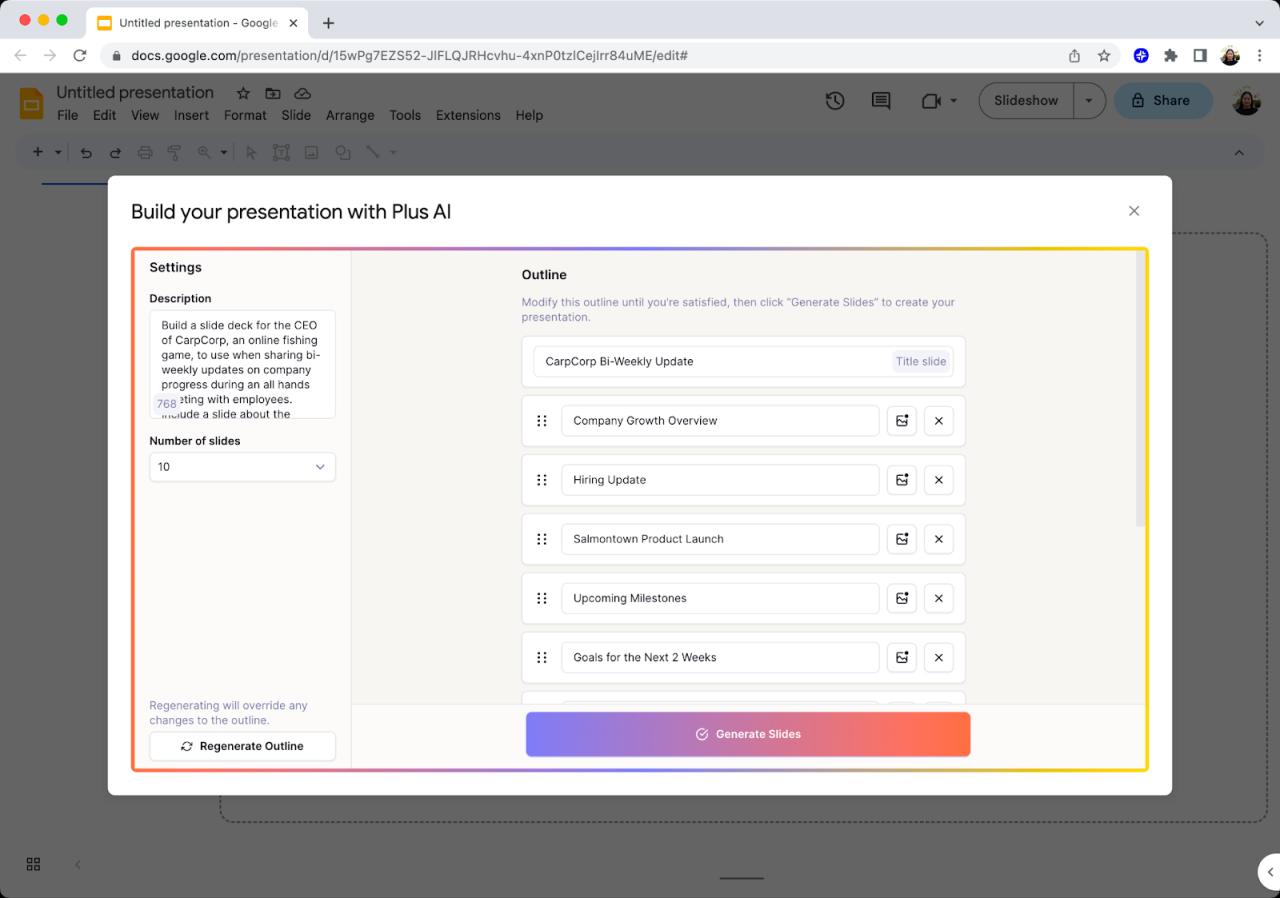
In the rapidly evolving landscape of presentation design, artificial intelligence (AI) has emerged as a powerful tool to enhance and streamline the creation of impactful slides. By leveraging AI-driven technologies, users can achieve professional-quality visuals with minimal effort, enabling more effective communication and saving valuable time. This overview explores the fundamental concepts of AI-based slide customization, the notable tools available, and a comparative analysis to guide users in selecting the most suitable solutions.
Utilizing AI for slide design involves employing algorithms and machine learning models that can analyze content, suggest layouts, generate visuals, and even automate repetitive tasks. These capabilities not only improve aesthetic consistency but also foster creativity by providing innovative design suggestions. The benefits include increased efficiency, consistency in branding, personalized slide layouts, and the ability to quickly adapt presentations to different audiences or contexts.
AI-driven tools and software for slide design
The market offers a diverse range of AI-powered presentation tools tailored to meet various needs, from simple template customization to fully automated slide creation. These tools utilize advanced algorithms to interpret input content, recommend design adjustments, and generate visuals that align with the presentation’s theme and purpose. Popular options include:
- Beautiful.ai: Known for its intelligent slide templates that adapt dynamically to content, ensuring a cohesive and professional look.
- Designs.ai: Offers automated logo, video, and presentation creation, incorporating AI to streamline the design process.
- Canva: Incorporates AI features such as background removal, design suggestions, and layout optimization within an intuitive interface.
- Visme: Combines AI-based data visualization tools with customizable templates to craft engaging presentations.
The choice among these tools depends on specific needs, such as automation level, ease of use, customization options, and integration capabilities with other software. Below is a comparative table summarizing key features of these popular AI slide customization tools:
| Tool | Automation Level | Design Assistance Features | Content Integration | Pricing Model |
|---|---|---|---|---|
| Beautiful.ai | High – automatic layout adjustments | Smart templates, design suggestions | Supports importing content from various sources | Freemium with premium subscription options |
| Designs.ai | Moderate – automated design generation | Creative assets, theme customization | AI-powered content adaptation and branding tools | Subscription-based plans |
| Canva | Moderate – AI features embedded in editor | Layout suggestions, background removal, font pairing | Extensive media library and content upload options | Freemium with additional features in paid plans |
| Visme | Moderate – data visualization automation | Infographics, interactive elements | Data import, real-time updates | Subscription-based with free trial |
Integrating AI into slide creation workflows
Incorporating artificial intelligence into existing presentation workflows enhances efficiency, consistency, and creative potential. By leveraging AI tools effectively, professionals can streamline repetitive tasks, generate innovative content, and maintain high standards across multiple slides. The process involves careful planning, selection of suitable AI solutions, and ongoing optimization to ensure seamless integration into daily operations.
Effective integration of AI into slide creation requires a structured approach that aligns with organizational goals. It involves identifying the stages where AI can add value, establishing clear procedures for usage, and adopting best practices that foster productivity without compromising quality. This systematic approach ensures that AI becomes a natural extension of your workflow, enabling faster turnaround times and more engaging presentations.
Step-by-step procedures to incorporate AI tools into existing presentation workflows
Implementing AI into your slide creation process involves several essential steps, which help optimize productivity and ensure smooth operation:
- Assess Current Workflow: Analyze existing processes to identify bottlenecks, repetitive tasks, or stages where AI can add value, such as content generation, design, or data visualization.
- Select Appropriate AI Tools: Choose AI-powered platforms tailored to your needs, such as content generators, image creation tools, or design automation solutions. Ensure compatibility with your existing software environment.
- Create Integration Protocols: Develop standard operating procedures that specify how and when AI tools should be used within the workflow, including input data formats and review checkpoints.
- Train Team Members: Provide comprehensive training on utilizing AI tools effectively, emphasizing best practices and common pitfalls to avoid.
- Implement in Pilot Projects: Start with small-scale projects to test AI integration, gather feedback, and make necessary adjustments before full deployment.
- Monitor and Optimize: Continuously track performance metrics, such as time savings and output quality, and refine procedures to maximize benefits.
Best practices for seamless AI integration
Maintaining a smooth and productive integration of AI into your workflow involves adhering to proven best practices that promote efficiency and consistency:
- Maintain Human Oversight: Always review and refine AI-generated content to ensure accuracy, appropriateness, and alignment with branding standards.
- Establish Clear Guidelines: Define standards for AI output quality, style, and tone to ensure uniformity across presentations.
- Automate Routine Tasks: Use AI for repetitive or time-consuming activities, such as template adjustments, image resizing, or data updates, freeing up human resources for strategic tasks.
- Foster Continuous Learning: Stay updated on the latest AI advancements and incorporate new tools or features that can further improve workflows.
- Encourage Collaboration: Facilitate communication between team members to share AI best practices, troubleshoot issues, and brainstorm innovative use cases.
- Ensure Data Security and Privacy: Protect sensitive information by selecting AI solutions with robust security protocols and adhering to organizational data policies.
Organizing methods of workflow optimization with emphasis on efficiency and consistency
Optimizing your slide creation process involves structuring tasks in ways that maximize productivity while maintaining high quality. The following methods can be employed to achieve these goals:
| Method | Description | Benefits |
|---|---|---|
| Template Standardization | Develop and utilize standardized templates enhanced with AI tools for consistent layouts, styles, and branding elements across all presentations. | Ensures visual coherence, reduces setup time, and simplifies updates. |
| Automated Content Drafting | Leverage AI to generate initial content drafts, Artikels, or summaries that serve as a foundation for further refinement. | Accelerates content development and reduces manual effort. |
| Integrated Data Visualization | Use AI to automatically create charts and infographics from raw data, ensuring accuracy and visual appeal. | Enhances clarity and saves time in data presentation. |
| Real-time Collaboration Tools | Implement AI-powered platforms that facilitate real-time editing, feedback, and version control among team members. | Promotes consistency and reduces miscommunication. |
| Workflow Automation Software | Integrate AI-driven automation tools that manage task sequences, notifications, and review cycles. | Streamlines processes, minimizes manual errors, and improves overall efficiency. |
“The key to effective AI integration lies in balancing automation with human oversight, ensuring outputs meet quality standards while gaining the benefits of speed and consistency.”
Designing Personalized Slide Templates with AI
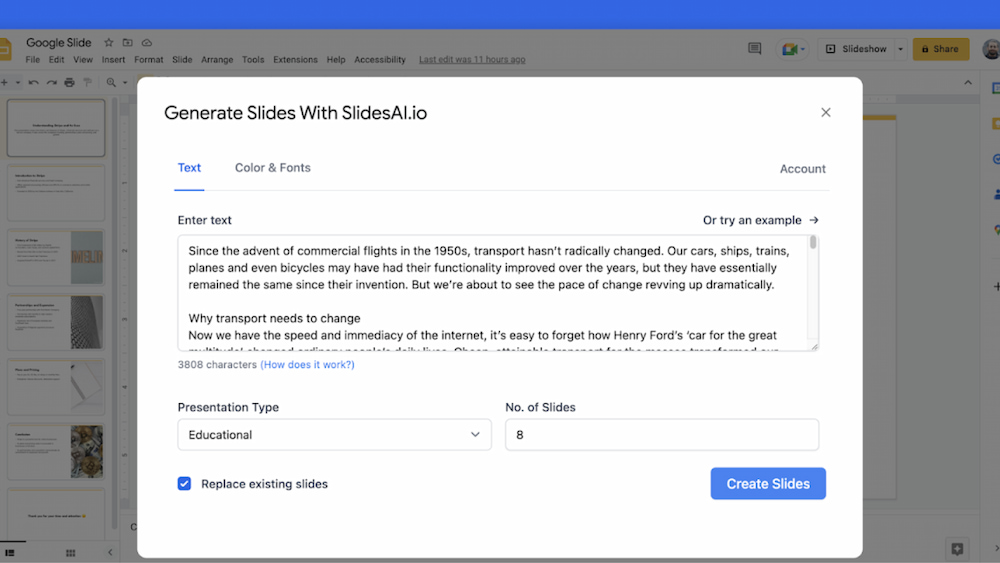
Creating customized slide templates tailored to specific branding guidelines and presentation themes enhances consistency and professionalism across your slide decks. AI-powered tools enable users to generate unique templates efficiently, aligning visual elements with brand identity or thematic preferences. This process streamlines the design workflow and ensures that each presentation reflects a cohesive visual style that resonates with the target audience.
Leveraging AI for designing personalized slide templates involves inputting specific parameters such as color schemes, font styles, logo placements, and layout preferences. AI algorithms analyze these inputs to craft templates that are not only visually appealing but also adhere to branding standards. This automation reduces manual effort and accelerates the template creation process, allowing users to focus more on content development and strategic messaging.
Generating Customized Slide Templates Based on User Input or Branding Guidelines
The foundation of AI-driven template customization lies in capturing user preferences or branding specifications. Users can provide detailed instructions—such as preferred color palettes, font choices, logo positioning, and overall design style. AI systems then process these inputs to generate mock-up templates that align with the provided parameters, ensuring a high degree of personalization.
For example, a corporate client aiming for a sleek, modern look might specify a minimalist color palette with shades of blue and gray, sans-serif fonts, and a header logo placement. The AI tool interprets these inputs to produce a template featuring clean lines, ample white space, and a consistent layout across slides. Similarly, educational institutions may request templates with vibrant colors and playful fonts suited for engaging presentations aimed at students.
Examples of AI-Created Templates for Different Presentation Themes
AI can generate templates tailored to diverse themes, enhancing relevance and visual coherence:
- Corporate Business Presentations: Templates with professional color schemes, structured layouts, and space for key metrics, charts, and branding logos. AI ensures consistency in font sizes and placement for a polished look.
- Educational or Academic Presentations: Bright, engaging designs with customizable layouts for text, images, and multimedia elements. AI can adapt templates to include visual aids suited for various subjects.
- Creative Portfolios or Design Showcases: Templates emphasizing visual storytelling, with flexible layouts that accommodate large images, annotations, and creative typography choices.
- Event or Conference Slides: Dynamic templates with designated areas for schedules, speaker bios, and sponsor logos, all tailored to the event’s branding guidelines.
In each case, AI can incorporate specific branding elements, thematic colors, and layout preferences to produce templates that resonate with the presentation’s purpose and audience.
Layout Procedures for Editing and Refining AI-Generated Templates within Presentation Software
After generating a personalized template, users can further refine and customize layouts within their preferred presentation software, such as PowerPoint or Google Slides. The process involves adjusting elements to better suit content needs and ensuring visual harmony across slides.
Key layout procedures include:
- Importing the AI-Generated Template: Save the generated template as a standard slide master or theme file compatible with the presentation software.
- Modifying Slide Master Elements: Access the slide master view to adjust placeholders, background images, and font styles for consistency across all slides.
- Refining Layouts: Customize individual slide layouts to better accommodate specific content types, such as charts, images, or text blocks, ensuring they align with the overall design.
- Applying Branding Adjustments: Update logo placements, color schemes, or typography to match any recent branding updates or specific presentation contexts.
- Preview and Test: Review the template across multiple slides to identify and correct layout inconsistencies or visual clutter.
- Saving Customized Templates: Once refined, save the updated template for future use, ensuring rapid deployment for upcoming presentations.
This structured editing process enables users to tailor AI-generated templates precisely to their content needs, maintaining a professional and cohesive appearance throughout their slide decks.
Automating Content Generation for Slides
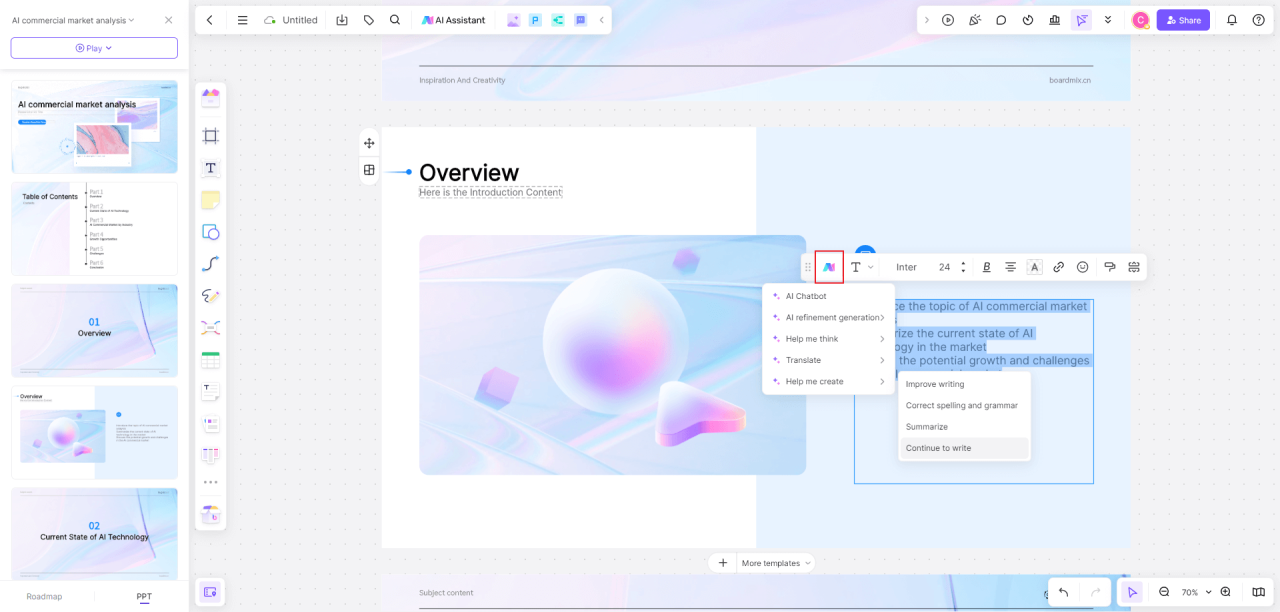
Incorporating AI into slide creation significantly enhances efficiency by automating the generation of core content components such as titles, bullet points, and summaries. This not only accelerates the workflow but also helps maintain consistency and clarity across presentations, especially when handling large volumes of data or multiple slides. Leveraging AI for content generation empowers users to produce professional, coherent slides with minimal manual input, allowing more focus on design and delivery.
AI tools utilize advanced natural language processing algorithms to analyze input data, identify key themes, and produce relevant, concise content tailored to the context of the presentation. These systems can generate multiple variations of slide titles, craft comprehensive bullet points, or summarize lengthy reports into digestible snippets. Properly integrating AI-generated content ensures that the information remains accurate, engaging, and aligned with the presentation’s objectives.
Additionally, implementing validation and editing routines helps maintain consistency and clarity, ensuring the final slides are polished and effective.
Utilizing AI for Developing Slide Content
AI-driven content development begins with inputting relevant data, such as reports, datasets, or s, into the AI tool. The system then processes this information to generate appropriate slide titles that capture the essence of the content, ensuring audience engagement from the outset. For bullet points, AI can extract key messages, prioritize information, and structure points logically, reducing the manual effort required for drafting and editing.
Summaries are especially valuable for condensing extensive information into concise, impactful statements. AI models can analyze lengthy documents, identify main ideas, and generate summaries that highlight critical insights. This process ensures that complex data is communicated effectively, enhancing audience understanding and retention.
Maintaining Consistency and Clarity with AI-Generated Content
To ensure the content produced by AI is consistent and clear, it is essential to establish guidelines and utilize tools that offer style and tone customization. Regular review processes, including editing and fact-checking, help refine AI outputs and align them with the intended message. Integrating AI suggestions into a collaborative workflow allows for human oversight, ensuring that the content maintains logical flow, appropriate terminology, and uniform formatting across slides.
Implementing validation mechanisms, such as consistency checks against existing branding standards or terminology glossaries, enhances the coherence of AI-generated content. By doing so, you can leverage the speed and efficiency of AI while preserving the quality and professionalism of your presentations.
Comparison of Manual vs AI-Assisted Content Creation Techniques
| Aspect | Manual Content Creation | AI-Assisted Content Creation | Remarks |
|---|---|---|---|
| Time Investment | Requires significant time for research, drafting, and editing. | Speeds up each phase by generating drafts and suggestions rapidly. | |
| Consistency | Depends on user’s attention to detail and experience, may vary. | Ensures uniform style and terminology through preset guidelines and AI tuning. | |
| Quality Control | Relies heavily on manual review and editing for accuracy and clarity. | Provides initial drafts that require review, reducing overall editing time. | |
| Creativity & Personalization | Allows for nuanced, context-specific customization. | Generates generic suggestions, which can be tailored further for uniqueness. |
Enhancing Visual Appeal through AI-Powered Design Features

Optimizing the visual impact of presentation slides is crucial for engaging audiences and conveying information effectively. AI-powered design features have revolutionized this aspect by providing intelligent suggestions that streamline the creation process while enhancing aesthetic quality. These tools harness machine learning algorithms to analyze slide content and recommend design enhancements, ensuring that each slide is both visually appealing and tailored to the presentation’s purpose.
Implementing AI-driven design suggestions enables users to elevate the overall look of their slides with minimal effort. By integrating these recommendations seamlessly into the workflow, presenters can produce polished, professional slides in a shorter timeframe. From selecting harmonious color schemes to perfecting font pairings and layouts, AI tools serve as intelligent assistants that foster creativity and consistency in slide design.
AI Tools for Color Schemes, Font Pairings, and Layouts
Modern AI tools analyze slide content, branding guidelines, and visual principles to propose optimal design elements. For color schemes, AI evaluates contrast, harmony, and emotional impact, then suggests palettes that resonate with the presentation’s theme. Popular tools like Adobe Color and Canva’s Color Palette Generator leverage AI to offer complementary or analogous color schemes that enhance readability and aesthetic appeal.
For font pairings, AI recommends combinations based on typographic principles, such as contrast and hierarchy, to improve readability and visual interest. Tools like Google Fonts’ AI-powered pairing suggestions or commercial design assistants analyze font styles and weights to generate compatible pairings suitable for headings, body text, and captions.
Layout recommendations are generated through AI algorithms that analyze content structure, guiding users in arranging text, images, and other elements for optimal balance and flow. These tools suggest grid-based or modular layouts that facilitate uniformity and visual clarity across slides.
Implementing AI Recommendations to Improve Slide Aesthetics
To effectively utilize AI suggestions, presenters should start by selecting a slide or template where AI-generated recommendations are available. Applying color schemes involves choosing from suggested palettes and adjusting slide backgrounds accordingly. When implementing font pairings, users can select recommended font combinations and adjust sizes or spacing to match their style preferences. Following layout suggestions often involves rearranging content boxes or grids to align with AI-provided templates, ensuring a cohesive appearance.
Consistency is key; therefore, applying AI-driven style guides across multiple slides ensures a unified visual theme. Additionally, reviewing AI suggestions critically allows users to customize recommendations to better align with branding or personal preferences without compromising design integrity.
Example Style Guides for Effective Visual Customization
Developing a style guide tailored to your presentation enhances consistency and professionalism. Here are example guidelines based on AI recommendations:
- Consistent color palette: Use primary colors for headings and accents, secondary colors for backgrounds and subtle highlights.
- Font hierarchy: Headings should be bold and larger, body text should be clear and readable, captions and footnotes in smaller, lighter fonts.
- Layout principles: Maintain uniform margins and spacing, align text and images centrally or left-justified, use grid templates suggested by AI for balanced composition.
- Contrast and readability: Ensure sufficient contrast between text and background, following AI suggestions for optimal color pairing.
- Visual hierarchy: Highlight key information using size, color, or font weight, guided by AI recommendations to direct audience focus effectively.
By adhering to these style guides, presenters can create visually appealing slides that are both professional and aligned with their branding or presentation goals. AI-powered design features serve as invaluable tools to inspire creativity, improve aesthetics, and ensure consistency across all slides.
Incorporating AI-generated Images and Multimedia
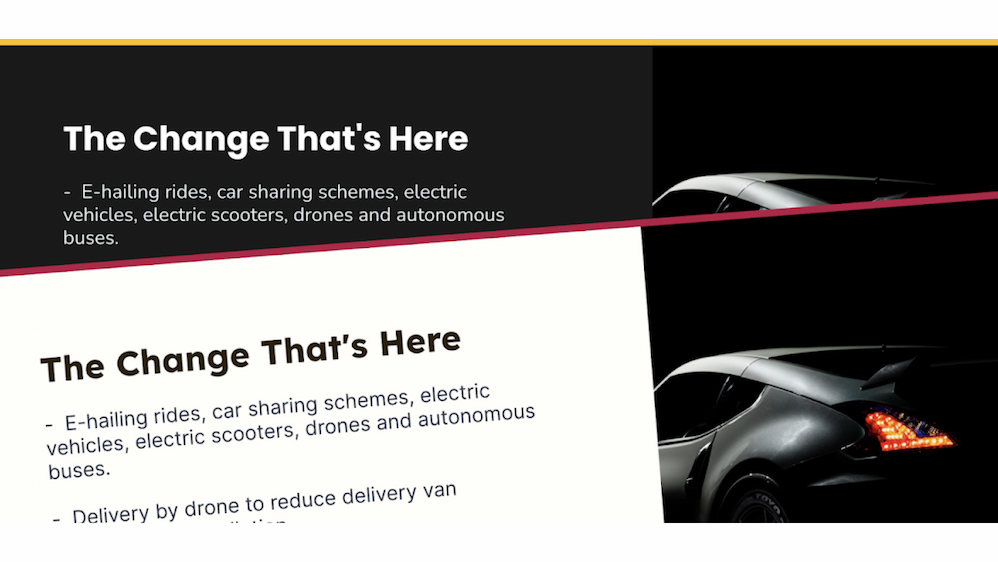
Integrating AI-generated images, icons, and videos into slide presentations significantly enhances visual engagement and helps convey complex ideas more effectively. Leveraging AI tools to create multimedia content tailored to specific topics streamlines the presentation development process and results in more compelling visuals that resonate with diverse audiences. This section explores practical procedures for embedding AI-created multimedia into slides, ensuring seamless integration, and customizing visual elements to match your presentation’s theme.AI-generated multimedia content can be crafted with advanced algorithms that understand contextual nuances, making it possible to produce highly relevant images, icons, and videos.
These AI tools enable presenters to generate visuals that are not only aesthetically appealing but also precisely aligned with the message they want to communicate. By following structured procedures, users can efficiently embed and manipulate these multimedia elements to enhance storytelling and audience engagement.
Integrating AI-created images, icons, and videos into slides
The process of incorporating AI-created multimedia involves several key steps to ensure quality and consistency across the presentation:
- Selecting the appropriate AI tool: Choose from platforms such as DALL·E, Midjourney, or Runway ML, which are capable of generating high-quality images and videos based on textual prompts.
- Creating relevant visual content: Craft detailed descriptive prompts that specify the visual’s style, content, and context to produce images or videos that align with your slide’s message. For example, requesting an image of a futuristic cityscape with neon lighting for a presentation on smart cities.
- Refining generated media: Use editing features within AI tools to adjust aspects such as color, composition, or resolution, ensuring visual consistency with slide themes.
- Embedding multimedia into slides: Insert the AI-generated images or videos into your presentation software by using the ‘Insert’ function, then position and resize the elements to complement your slide layout.
- Adjusting multimedia elements: Utilize editing options within the presentation software to crop, overlay, or animate multimedia content, ensuring it harmonizes with the surrounding text and overall design aesthetic.
Producing relevant visual content through deep descriptive requests
The quality and relevance of AI-generated visuals heavily depend on the clarity and detail of the prompts given to the AI system. When requesting images or videos, it is essential to provide comprehensive descriptions that encompass style, color palette, context, and specific elements needed for the visual.
- Specify the scene’s setting, such as a modern office environment, a natural landscape, or an abstract background.
- Include details about color schemes, for instance, vibrant hues for energetic topics or subdued tones for serious subjects.
- Describe the mood or atmosphere, whether it’s futuristic, professional, playful, or contemplative.
- Mention the specific objects, characters, or symbols to be included, such as a robotic arm, a globe with interconnected nodes, or a person giving a presentation.
- Indicate stylistic preferences, like minimalistic, photorealistic, watercolor, or digital art.
For example, requesting an image of “a diverse group of professionals collaborating in a high-tech conference room with large screens displaying data visualizations, rendered in a photorealistic style with a modern aesthetic” ensures the AI produces highly relevant content that enhances the slide’s narrative.
Embedding and adjusting multimedia elements to match presentation themes
Embedding AI-generated multimedia is only the first step; adjusting these elements for thematic consistency and visual harmony is vital for a professional appearance.
| Embedding Method | Description |
|---|---|
| Direct Insertion | Insert images or videos directly into slides using the presentation software’s import functions, then position and resize to fit the layout. |
| Layering and Overlay | Use layering techniques to overlay multimedia elements with transparent backgrounds or effects for a seamless integration with text or graphics. |
| Animation and Transition | Apply animations to multimedia components to draw attention or create smooth transitions that match the presentation’s pacing. |
Adjustments should focus on ensuring color schemes, styles, and sizes align with your overall slide design. For instance, applying a uniform color filter or style overlay can unify diverse visuals. Additionally, resizing and repositioning multimedia elements to complement textual content prevents clutter and maintains audience focus.By following these procedures, presenters can leverage AI-generated images and multimedia to produce visually striking, thematically coherent slides that deepen audience engagement and reinforce key messages.
Customizing Animations and Transitions with AI Assistance
Incorporating animations and transitions enhances the visual engagement and flow of a presentation. Leveraging AI to customize these elements ensures that the animations are not only aesthetically pleasing but also contextually appropriate, creating a cohesive and professional delivery. AI-driven tools can analyze slide content, thematic elements, and audience engagement patterns to recommend optimal animation styles and transition effects, streamlining the customization process while elevating the overall presentation quality.
Implementing AI recommendations involves a systematic approach where users review suggested animation and transition options, adjust parameters as needed, and preview results to ensure alignment with their presentation objectives. This process facilitates consistency, reduces manual effort, and enhances the storytelling aspect by maintaining an appropriate tempo and visual rhythm across slides.
AI-Suggested Animation Styles and Transition Techniques
The importance of selecting suitable animations and transitions lies in maintaining viewer interest and emphasizing key content without causing distraction. AI can analyze content complexity, slide structure, and desired emotional impact, offering tailored suggestions that improve clarity and engagement. Here are some common animation styles and transition techniques often recommended by AI tools:
| Animation Style | Description | Typical Use Cases |
|---|---|---|
| Fade In/Fade Out | A smooth transition where elements gradually appear or disappear, creating a subtle, professional effect. | Introducing key points or transitioning between related slides. |
| Slide In/Out | Content slides into or out of the frame from a specified direction, adding a dynamic flow. | Highlighting new sections or shifting focus between topics. |
| Zoom | Elements enlarge or shrink, emphasizing importance or detaching content from the background. | Drawing attention to specific data or s. |
| Fade and Scale | Combines fading with scaling effects for smooth and engaging transitions. | Introducing complex visuals or emphasizing transformations. |
Transition techniques recommended by AI often aim to create seamless and non-disruptive flow between slides. Examples include:
- Cross Dissolve: Gradually blends one slide into the next, ideal for maintaining visual continuity.
- Push Transition: Moves the current slide out while bringing the next in from a specific direction, useful for step-by-step processes.
- Wipe: Clears the current slide with a wiping motion, suitable for thematic shifts or segment changes.
- Cube or Flip: Adds a 3D rotation effect, useful for engaging tech-focused or creative presentations.
“AI-assisted animation suggestions are grounded in presentation best practices, ensuring visual consistency and audience engagement without overwhelming viewers.”
Ensuring Accessibility and User-Friendliness in AI-Customized Slides
Creating slides that are accessible and user-friendly is essential for effective communication and inclusive presentations. When integrating AI into slide customization, it is important to implement strategies that enhance usability for diverse audiences, including individuals with disabilities. AI-driven adjustments can significantly improve the readability, navigability, and overall accessibility of presentation materials, making content more inclusive and engaging for all viewers.AI can analyze slide design elements and suggest modifications to improve accessibility.
These include adjusting color contrasts for visual clarity, increasing font sizes for readability, and structuring content to support screen readers. By employing these AI-powered features, creators can ensure their slides meet established accessibility standards and are easier to understand across different devices and environments.
Strategies for AI-Driven Adjustments to Improve Slide Accessibility
Effective strategies involve leveraging AI tools that automatically detect and correct accessibility issues within slides. These tools can identify low-contrast color combinations, small fonts, and cluttered layouts that hinder readability. Incorporating AI suggestions for alternative text descriptions for images, captions, and transcripts enhances content comprehension for users with visual impairments. Additionally, AI can recommend logical content structures, such as using heading levels and consistent formatting, to facilitate navigation.It is also beneficial to use AI to analyze slide complexity and break down dense information into manageable segments.
Such adjustments reduce cognitive load and make slides easier to follow, especially for users with learning disabilities or cognitive impairments.
Guidelines for Testing and Refining Slides for Diverse Audiences
Testing slides across various user groups ensures accessibility and usability are maintained. Employing AI-based testing tools can simulate how different audiences, including those with disabilities, interact with the presentation. These tools assess factors like visual contrast, font legibility, and compatibility with assistive technologies.Refinement involves collecting feedback from diverse users and analyzing AI-generated reports to identify potential barriers. Adjustments should include simplifying language, adding descriptive alt text for multimedia, and streamlining navigation.
Regularly updating slides based on user feedback and AI recommendations ensures continuous improvement in accessibility standards.
Procedures for Applying AI Recommendations to Enhance Readability and Usability
Applying AI-driven suggestions effectively requires a structured approach. Begin by reviewing AI analysis reports that highlight specific accessibility issues within the slides. Prioritize adjustments based on their impact on user experience, such as correcting color contrast or increasing font size.Implement recommended changes systematically, verifying that each modification aligns with accessibility guidelines like WCAG (Web Content Accessibility Guidelines). Use AI tools to simulate how updates improve readability and usability, ensuring that the adjustments meet the needs of all users.
Document the changes made and establish ongoing review processes, leveraging AI to detect new accessibility concerns as content evolves.
Final Review
Mastering how to customize slides with AI empowers presenters to craft visually stunning and highly personalized slideshows effortlessly. Incorporating AI-driven design, content generation, and multimedia integration can elevate your presentation quality while optimizing workflow efficiency. Embracing these innovative techniques ensures your slides stand out and resonate effectively with your audience.