Learning how to generate infographic templates with AI opens new horizons for efficient and creative visual content creation. Utilizing advanced AI tools allows designers and content creators to streamline the process of developing engaging and professional infographics that can enhance website presentation and user engagement. This approach not only saves time but also offers endless customization options tailored to specific needs and branding requirements.
By exploring current AI-powered platforms and understanding their features, users can easily generate diverse infographic templates. From selecting suitable tools to customizing and integrating data seamlessly, mastering this process empowers users to produce compelling visual stories with minimal effort, ensuring their content stands out in an increasingly visual digital landscape.
Overview of AI-Generated Infographic Templates
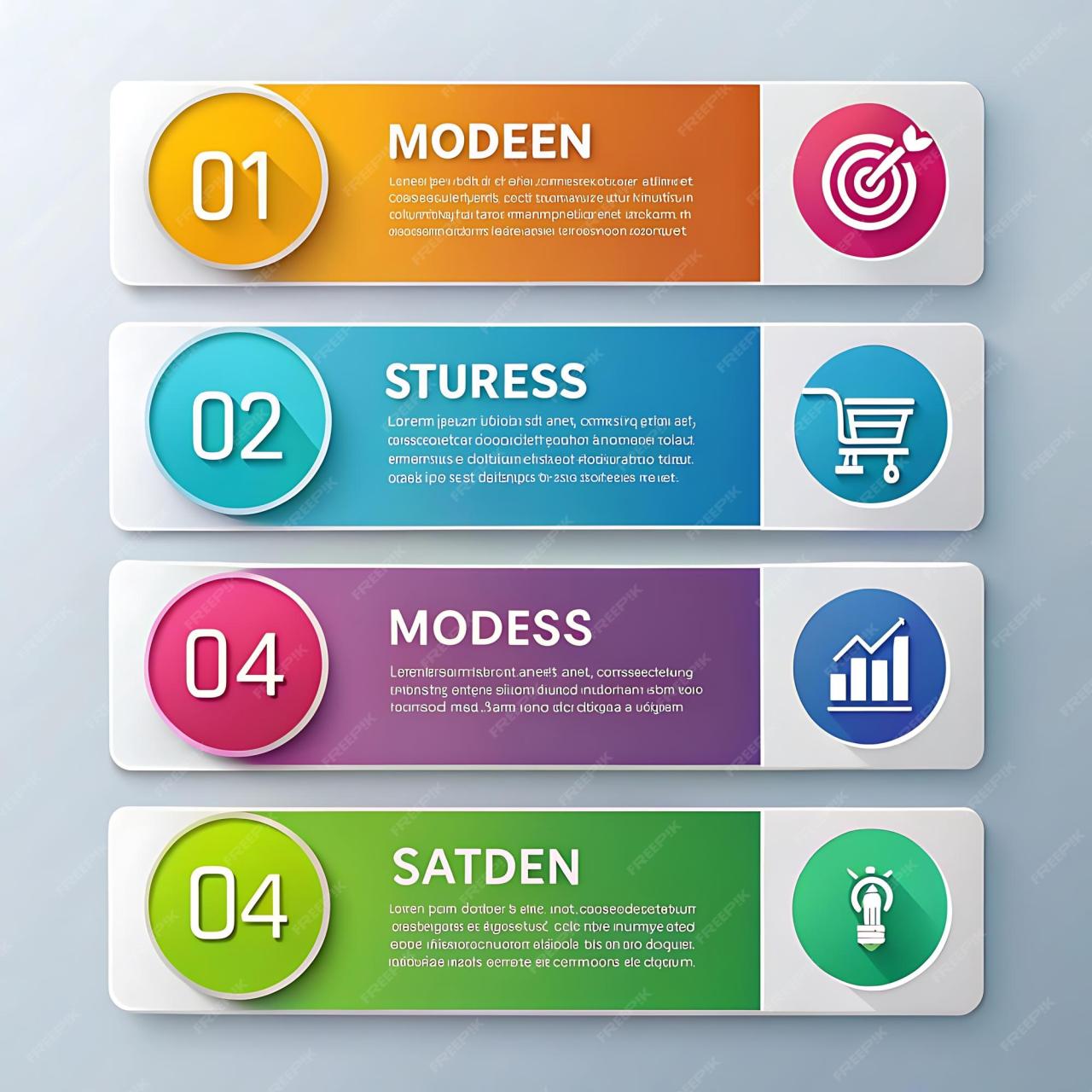
Artificial Intelligence (AI) has revolutionized the way visual content is created, particularly in designing infographic templates. By leveraging advanced algorithms, AI enables the rapid generation of visually appealing, data-driven templates that cater to diverse informational needs. This technological innovation streamlines graphic design processes, making it accessible to individuals and organizations without extensive design expertise.
AI-generated infographic templates incorporate machine learning, natural language processing, and computer vision to analyze data, recognize design patterns, and produce customizable visual layouts. These platforms and tools automate various aspects of the creative process, resulting in efficient, consistent, and professional-looking outcomes. The adoption of AI in this domain not only accelerates content creation but also enhances the quality and relevance of infographics to better communicate complex information.
Current Tools and Platforms Facilitating AI-Driven Infographic Design
Several innovative tools have emerged to facilitate AI-assisted infographic template creation, simplifying the workflow for users across different industries. These platforms leverage AI technology to suggest layouts, color schemes, iconography, and data visualizations based on input data and user preferences. Here are some noteworthy tools:
| Tool/Platform | Features | Benefits |
|---|---|---|
| Canva with AI Enhancements | Automated template suggestions, smart color palette choices, and AI-powered design resizing | Accessible for non-designers, fast customization, wide variety of templates |
| Piktochart | Data-driven design suggestions, AI-assisted icon and image placement | Focuses on data visualization, easy to use for business users |
| Visme | AI-based layout recommendations, real-time editing with AI feedback | Offers interactive elements and integration with data sources |
| Designs.ai | Automated logo, video, and infographic creation using AI algorithms | All-in-one platform for various visual content types, efficient workflow |
These tools utilize artificial intelligence to analyze large datasets and identify effective design patterns, enabling automation of the creative process. For example, when a user uploads sales data, AI can suggest the most suitable chart types and layout configurations to best showcase the information. Such automation reduces manual effort, accelerates production timelines, and ensures consistency across multiple visual outputs.
Automation of Infographic Creation through AI
AI automates infographic creation by interpreting input data, selecting appropriate visual elements, and assembling them into cohesive templates. This process involves several steps:
- Data Analysis: AI algorithms process raw data to identify key insights and trends, prioritizing information that requires visualization.
- Template Selection: Based on the data type and user preferences, AI recommends suitable template styles that effectively communicate the message.
- Design Assembly: The platform automatically arranges visual components such as charts, icons, and text blocks, adhering to design principles like balance and readability.
- Customization & Refinement: Users can further personalize templates, with AI providing real-time suggestions for improvements, such as adjusting color schemes or font sizes.
“AI-driven infographic generators significantly reduce the time from data input to final visual,” demonstrating efficiencies comparable to manual design processes while maintaining high-quality output.
For instance, a marketing team preparing a campaign report can upload their sales figures, and the AI tool will generate a professional infographic with relevant visualizations, ready for presentation within minutes. This automation not only boosts productivity but also allows users to focus more on strategic insights rather than technical design details.
Selecting AI Tools for Infographic Template Generation
Choosing the right AI-powered design software for infographic template creation is a crucial step that can significantly impact the efficiency, customization, and overall quality of your visual content. With a variety of tools available today, understanding their features and how they align with your specific project needs helps ensure optimal results. This section provides a comprehensive overview of popular AI-driven design platforms, comparing their usability, customization options, and output quality to aid in informed decision-making.
When selecting an AI tool for infographic generation, it is essential to evaluate factors such as ease of use, flexibility in design customization, integration capabilities, and the ability to produce high-resolution, visually appealing graphics. Some tools excel in automated template creation, ideal for quick projects, while others offer extensive manual editing features for highly tailored designs. Matching the tool’s strengths with your project scope, technical proficiency, and desired aesthetic outcomes will streamline your workflow and enhance final outputs.
AI-Powered Design Software Options for Infographic Templates
The current landscape of AI-driven design software offers a diverse array of options, each equipped with unique features tailored to various user needs—from beginners seeking simple automation to professional designers requiring advanced customization. Below is a detailed comparison of some leading platforms, organized into a clear, responsive table for easy reference.
| Software | Usability | Customization Options | Output Quality |
|---|---|---|---|
| Canva with AI Features | Highly intuitive with drag-and-drop interface, suitable for users of all skill levels. | Extensive template library, automatic suggestions, adjustable layouts, color schemes, and font options. | High-resolution exports, professional-grade graphics, and adaptable design elements. |
| Visme | User-friendly with guided templates and AI-driven content suggestions, ideal for beginners and intermediate users. | Rich library of customizable templates, data visualization tools, and interactive elements. | High-quality visuals with options for interactive and animated infographics. |
| Adobe Express (formerly Adobe Spark) | Moderately easy to use, integrates seamlessly with Adobe Creative Cloud for advanced editing. | Pre-designed templates with options to modify layout, colors, fonts, and images, plus AI-driven design suggestions. | Professional-grade outputs suitable for print and digital distribution. |
| Designs.ai | Automation-focused, requiring minimal design experience, with guided template creation. | Automated branding, customizable templates, and AI-generated content suggestions. | High-quality, ready-to-publish graphics with consistent branding elements. |
Choosing the optimal AI tool depends on your specific requirements. For instance, if speed and ease of use are priorities, Canva’s intuitive interface and extensive template library make it an excellent choice. Conversely, for projects demanding advanced customization and integration with other Adobe tools, Adobe Express offers more sophisticated editing capabilities. For users focused on data-driven or animated infographics, Visme provides robust visualization options.
Consider your familiarity with design software, project complexity, and desired output quality when evaluating these options.
Designing Infographic Templates with AI
Creating compelling and visually appealing infographic templates with AI involves a structured approach that combines understanding your data, selecting appropriate design styles, and leveraging the capabilities of advanced AI platforms. This process streamlines the development of professional-quality templates that effectively communicate information and engage audiences.
By following systematic procedures, users can input their data, preferences, and desired visual styles into AI tools to generate diverse, customizable infographic layouts. These tools interpret user inputs and utilize machine learning algorithms to produce designs that range from minimalist and data-centric to colorful and illustrative, catering to various branding and communication needs.
Step-by-Step Procedures to Generate Templates Using AI Platforms
To efficiently design infographic templates with AI, it is essential to follow a clear sequence of steps that maximizes the platform’s capabilities:
- Identify Your Purpose and Audience: Clarify the main message your infographic should convey and the target viewers. This helps in selecting appropriate styles and formats.
- Gather and Prepare Your Data: Organize the data you want to visualize, ensuring clarity and accuracy. Data should be cleaned and formatted for easy input into AI tools.
- Select an AI Platform or Tool: Choose a suitable AI-powered infographic generator that offers customization options, such as Canva’s Magic Design, Visme with AI features, or specialized platforms like Snappa or Crello.
- Input Data and Preferences: Upload or input your data directly into the platform. Specify your preferences for layout types, color schemes, visual elements, and style motifs through available options or prompts.
- Configure Design Settings: Adjust settings for visual hierarchy, font styles, iconography, and overall aesthetics based on your brand guidelines or project requirements.
- Generate and Review: Initiate the AI to produce multiple template options. Review the generated designs, select the most suitable one, or refine inputs for further customization.
- Finalize the Template: Edit or tweak the chosen template as needed, adding or removing elements to better fit your content and branding.
Demonstrating AI Input for Diverse Infographic Layouts
To illustrate how AI tools interpret user input, consider a scenario where a user aims to create an infographic about climate change impacts. The user provides structured data such as temperature rise statistics, sea level data, and carbon emissions, along with preferences for a modern and clean style, a cool color palette, and icon-based visual elements.
The AI platform analyzes these inputs, recognizing the data categories and stylistic preferences. It then generates various layouts, including side-by-side comparison charts, timeline visualizations, and globe-centric maps, all utilizing blue and green tones to evoke environmental themes. The user can select a layout that best suits their message and further customize it with additional icons or text annotations.
Categories of Styles, Color Schemes, and Visual Elements for Inspiration
Having a diverse set of style options and visual elements enhances the creativity and adaptability of infographic templates generated by AI. Below is a categorized list to inspire users:
| Style Category | Description |
|---|---|
| Minimalist | Clean layouts with ample white space, simple icons, and limited color palettes focusing on clarity and simplicity. |
| Modern | Bold typography, geometric shapes, vibrant colors, and dynamic layouts emphasizing contemporary aesthetics. |
| Illustrative | Hand-drawn or cartoon-style visuals, playful fonts, and colorful backgrounds suitable for informal or educational content. |
| Data-Driven | Focus on charts, graphs, and dashboards with structured layouts designed for clarity and detailed information presentation. |
| Color Scheme Category | Examples and Inspiration |
| Monochromatic | Various shades of a single color, such as blues for professionalism or greens for eco-themed infographics. |
| Complementary | Colors opposite each other on the color wheel, like blue and orange, to create vibrant contrast. |
| Analogous | Colors next to each other on the wheel, e.g., yellow, yellow-orange, and orange, for harmonious visuals. |
| Pastel | Soft, muted tones that evoke calmness and approachability, suitable for health or lifestyle topics. |
| Visual Elements | Examples and Usage |
| Icons | Simple, universally recognizable symbols that enhance understanding and aesthetic appeal. |
| Charts and Graphs | Bar, pie, line, or area charts for data visualization, customizable in style and color. |
| Maps | Geographical visualizations highlighting regional data or global impacts. |
| Illustrations | Custom-style drawings that add personality and clarity, especially for storytelling or branding. |
| Typography | Fonts that complement overall style, emphasizing readability and visual hierarchy. |
Customizing AI-Generated Infographic Templates
Once an infographic template has been generated using AI tools, customization becomes essential to align the design with specific branding, messaging, or aesthetic preferences. Personalizing templates ensures that the final visual content effectively communicates the intended message and maintains consistency across various materials.
Customization involves modifying various elements such as layout, color schemes, fonts, and data visualization components. These adjustments help to reinforce brand identity, improve readability, and enhance visual appeal. AI-powered editing platforms typically provide intuitive interfaces that facilitate these modifications, enabling users to craft unique and compelling infographics efficiently.
Methods for Modifying and Personalizing Templates
Post-generation customization methods include editing layout arrangements, adjusting color palettes to match brand colors, selecting or changing fonts for better readability or style, and refining data visualization elements to better represent the data story. These methods allow users to tailor the infographic to specific themes or audiences, ensuring relevance and impact.
Below is a quick reference table summarizing key customization options:
| Customization Aspect | Description | Tools & Techniques | Practical Examples |
|---|---|---|---|
| Layout Adjustment | Rearranging elements to improve flow and hierarchy | Drag-and-drop editors, grid snapping, alignment tools | Centering key statistics, creating visual breaks for readability |
| Color Customization | Altering color schemes to match branding or themes | Color pickers, predefined palettes, HEX/RGB inputs | Applying brand colors like blue and orange, creating contrast for accessibility |
| Font Selection | Changing typography to enhance clarity or style | Font dropdown menus, importing custom fonts | Using professional fonts like Arial for clarity or script fonts for elegance |
| Data Visualization Refinement | Modifying charts and graphs for clearer data representation | Editing chart types, adjusting data points, adding labels | Switching from pie to bar charts for better comparison, highlighting key data points |
Applying Brand Identity or Specific Themes
Incorporating brand identity or thematic elements into AI-generated templates involves systematic modification of visual components to reflect the desired style. This process ensures consistency across all visual communications and reinforces brand recognition.
Start by importing brand assets such as logos, specific color codes, and preferred fonts into the editing platform. Use these elements to replace default or placeholder components within the template. For instance, applying a brand’s primary color palette to headings and data visuals creates visual coherence. Adjusting fonts to match official typography guidelines maintains professionalism and recognizability.
Additionally, thematic customization might require incorporating background images, patterns, or icons aligned with the campaign or topic. Using blockquotes or labels within the infographic to highlight key messages further personalizes the content. Many AI editing tools offer templates or style presets that can be customized to fit particular branding themes, streamlining this process.
Integrating Data into AI-Generated Infographics
Efficiently incorporating data into AI-generated infographics is vital for creating visually compelling and accurate representations. The process involves importing, organizing, and ensuring the relevance of data, which directly impacts the clarity and effectiveness of the final visual. Proper data integration not only enhances the visual storytelling but also ensures that the infographic remains dynamic and adaptable to evolving information.The core challenge lies in translating raw and often complex data into a format that AI can interpret and visually simplify.
This requires a systematic approach to data management, from initial import to ongoing updates. The success of this process depends on selecting the right tools, understanding data structures, and maintaining data quality throughout the infographic creation cycle.
Procedures for Importing and Organizing Data for Infographic Design
The first step involves establishing a reliable method for importing data from diverse sources such as spreadsheets, databases, or APIs. Data should be formatted consistently, typically in CSV, JSON, or Excel files, to facilitate seamless ingestion by AI tools. Once imported, organizing data effectively is crucial; this can include categorizing data points, tagging relevant variables, and structuring datasets into logical hierarchies.To optimize data management, leveraging data validation techniques ensures that the data adheres to predefined standards, reducing errors.
For example, standardizing date formats or numerical units prevents misinterpretations. Additionally, creating a data schema that maps data fields to visual elements enables AI to accurately assign data segments to corresponding chart types or graphic components.
Techniques to Ensure Data Accuracy and Relevance within Templates
Accuracy and relevance are fundamental to producing meaningful infographics. Implementing validation processes, such as cross-referencing data with original sources or utilizing automated scripts to detect anomalies, helps maintain data integrity. Regular audits of datasets prevent outdated or incorrect information from influencing visual outputs.Relevance is assured by filtering data to include only pertinent entries and by updating datasets regularly. Using metadata tags, s, or filters can help AI recognize which data points should be highlighted based on current trends or specific objectives.
For instance, an infographic focused on financial growth should prioritize recent quarterly data over historical figures unless trends are being analyzed.
Ensuring data relevance involves continuous filtering and updating, making the visualizations timely and impactful.
Adapting Templates to Different Data Types and Volumes
AI systems are capable of adapting infographic templates to various data types, such as numerical, categorical, or temporal data, by employing specialized algorithms. Numerical data can be visualized through bar charts, line graphs, or pie charts, while categorical data may be better suited for infographics involving icons or color-coded segments. Temporal data, such as time series, can be represented through trend lines or animated progressions.Handling different data volumes requires AI to intelligently scale visual elements without cluttering the design.
For small datasets, detailed visualizations can be used, whereas large datasets benefit from summarization techniques like aggregation or sampling. AI can automatically detect data density and select the most suitable visualization method, ensuring clarity and readability.For example, an AI tool may recognize a dataset with thousands of entries and choose to display a summarized trend line with key highlights. When new data becomes available, AI can update the visualizations dynamically, adjusting scales and aggregations, and maintaining consistency across versions without requiring manual intervention.
Exporting and Using Infographic Templates
After designing and customizing your infographic templates with AI, the next essential step is exporting and integrating them into various platforms. Properly exporting and utilizing these visuals ensures maximum impact, accessibility, and ease of sharing across different mediums.
Effective exporting options and embedding techniques enable users to leverage AI-generated infographics efficiently, whether for online publications, presentations, or printed materials. Understanding the different formats and best practices enhances the overall quality and reach of your visual content.
Export Options for Infographics in Various Formats
Choosing the appropriate file formats for exporting infographics is crucial for maintaining quality and ensuring compatibility across platforms. Common formats include PNG, PDF, and HTML, each serving different purposes and use cases.
- PNG (Portable Network Graphics): Ideal for high-quality images with transparent backgrounds. PNG files are widely supported for web use and presentations. They retain image clarity even after resizing and are suitable for detailed graphics.
- PDF (Portable Document Format): Suitable for sharing static infographics that require consistent formatting across devices. PDFs preserve layout, fonts, and quality, making them perfect for printing and professional distribution.
- HTML (HyperText Markup Language): Enables embedding interactive or responsive infographics directly into web pages. HTML files can include embedded images, animations, and data visualizations, facilitating seamless online integration.
When exporting, consider the intended use and audience to select the most appropriate format. High-resolution PNGs are excellent for social media and presentations, PDFs are best for downloadable reports, and HTML enhances online interactivity.
Embedding Infographics into Websites and Presentations
Embedding infographics effectively into digital platforms involves strategic placement and technical considerations. Proper embedding ensures that infographics are visually engaging, accessible, and correctly formatted within the host environment.
- Embedding into websites: Use
<img>tags for static images like PNGs or PDFs converted into images. For interactive content, embed HTML code snippets directly into webpage code or use iframe tags for third-party visualizations. - Inserting into presentations: Most presentation software (e.g., PowerPoint, Google Slides) allows inserting images or links to online content. Embedding high-resolution PNGs or PDFs ensures clarity, while linking to HTML content can provide interactivity.
- Best practices: Optimize file sizes to reduce load times, ensure proper alignment and sizing, and verify that embedded content displays correctly across different devices and browsers.
Creating Responsive HTML Code Snippets for Online Use
Responsive HTML code snippets enable infographics to adapt seamlessly to various screen sizes, ensuring optimal viewing experience on desktops, tablets, and smartphones. This adaptability is vital for online engagement and accessibility.
Use CSS techniques such as flexible widths, media queries, and scalable vector graphics (SVG) to achieve responsiveness.
For example, embedding an infographic as an SVG within a responsive container allows the graphic to resize proportionally. Incorporate CSS styles to set maximum widths and height auto settings, ensuring the infographic remains legible and well-formatted across devices.
<div style="max-width:100%; height:auto;">
  <svg viewBox="0 0 800 600" style="width:100%; height:auto;">
    <!-- SVG infographic content -->
  </svg>
</div>
This approach guarantees that the infographic adjusts dynamically, maintaining clarity and visual appeal regardless of the screen dimensions.
Optimizing Infographic Quality and Accessibility
To maximize the effectiveness and reach of your infographics, it is essential to optimize their quality and ensure they are accessible to all users, including those with disabilities.
- Quality optimization: Export images at high resolutions (300 DPI for print, web-optimized resolutions for online use). Compress files using lossless techniques to reduce size without sacrificing clarity. When using SVGs, minimize code complexity for faster loading.
- Accessibility considerations: Add descriptive alt text for images to assist screen readers. Ensure sufficient color contrast between text and backgrounds to aid visually impaired users. Embed textual data within images where necessary and avoid using color alone to convey information.
- Enhancement techniques: Incorporate ARIA labels and semantic HTML tags to improve navigation and comprehension. Test infographics with accessibility tools to identify and address potential barriers.
Implementing these best practices guarantees that your AI-generated infographics are not only visually appealing but also accessible, functional, and ready for diverse audiences and platforms.
Enhancing Infographics with AI-Driven Visual Elements
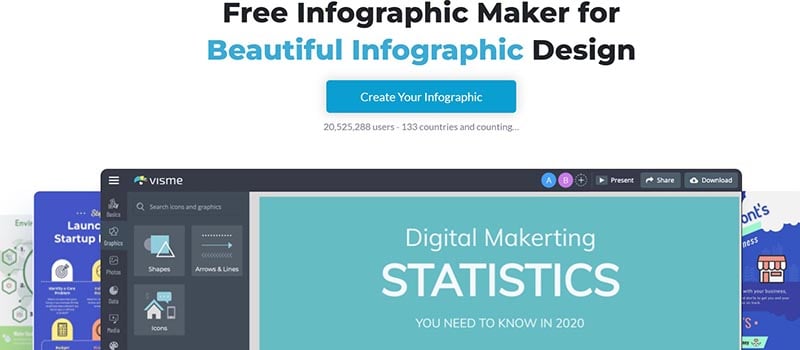
Integrating compelling visual components such as icons, illustrations, and animations significantly elevates the effectiveness of infographics. AI-powered tools now enable creators to seamlessly incorporate these elements, making data visualization more engaging, informative, and memorable. Leveraging AI for visual enhancement not only accelerates the design process but also ensures consistency and high quality across graphic components.
By utilizing AI-driven visual elements, designers can craft infographics that capture attention and communicate complex information more intuitively. These tools facilitate the automatic generation and customization of visual assets tailored to specific themes, color schemes, and data contexts. As a result, AI-enhanced infographics become powerful tools for storytelling, marketing, education, and data analysis.
Incorporating Icons, Illustrations, and Animations Using AI Tools
AI tools streamline the integration of visual elements by offering a variety of features designed to generate and customize icons, illustrations, and animations effortlessly. These tools analyze the content and context of your infographic to suggest relevant visual assets that align with your overall design aesthetic.
For example, AI-powered icon libraries allow users to input s related to the infographic’s topic, automatically generating icons that fit the theme. Similarly, AI-driven illustration generators can produce detailed images based on textual descriptions, enabling highly customized graphics that resonate with your audience. Animation features embedded in AI tools facilitate the addition of subtle motion effects to elements like data points or icons, making the infographic more dynamic and engaging.
Designing Visually Appealing Graphic Components
Effective visual components balance aesthetic appeal with clarity and relevance. AI-driven design platforms assist in creating visually appealing graphic elements by providing intelligent suggestions related to layout, color schemes, and visual hierarchy. These platforms analyze best practices in visual design and adapt suggestions to suit the content and purpose of your infographic.
Designers can focus on selecting appropriate icons and illustrations that complement the data presented. AI tools often include features such as auto-alignment, spacing optimization, and contrast adjustments to enhance visual harmony. For instance, AI can recommend color palettes that evoke specific emotions or improve readability, ensuring each graphic component contributes to a cohesive and professional appearance.
Organizing Visual Element Options into a Table
To facilitate efficient selection and comparison of visual assets, organizing options into a structured table offers clarity. Below is an example of how AI-generated visual elements can be categorized:
| Icons | Illustrations | Animations | Customization Features |
|---|---|---|---|
| AI-enhanced icon libraries with search, style filters, and scalable SVGs. | Text-to-image AI generators creating custom illustrations based on descriptive prompts. | Lightweight motion effects applied to data points or icons to emphasize key information. | Color adjustment, size scaling, and style modifications using AI suggestions. |
| Automated icon set suggestions aligned with infographic themes. | Generated illustrations tailored to specific industries or topics, such as healthcare or finance. | Animation templates for data transitions or storytelling sequences. | Customizable animation timings and effects through AI interfaces. |
Techniques to Improve Visual Storytelling through AI Customization
Enhancing visual storytelling involves not just adding elements but ensuring they work harmoniously to deliver a clear narrative. AI customization provides several techniques to achieve this:
- Context-Aware Asset Selection: AI analyzes the thematic content and recommends visual elements that reinforce the story, ensuring consistency and relevance.
- Adaptive Color Schemes: AI tools adjust color palettes based on emotional tone or branding guidelines, enhancing mood and engagement.
- Dynamic Data Highlighting: Using AI, designers can create animated effects that draw attention to critical data points or trends, improving viewer focus.
- Iterative Refinement: AI can generate multiple visual variations, allowing creators to select or refine components that best tell their story.
AI-driven customization transforms static graphics into interactive storytelling tools, making complex data more accessible and compelling.
Best Practices and Future Trends in AI Infographic Design
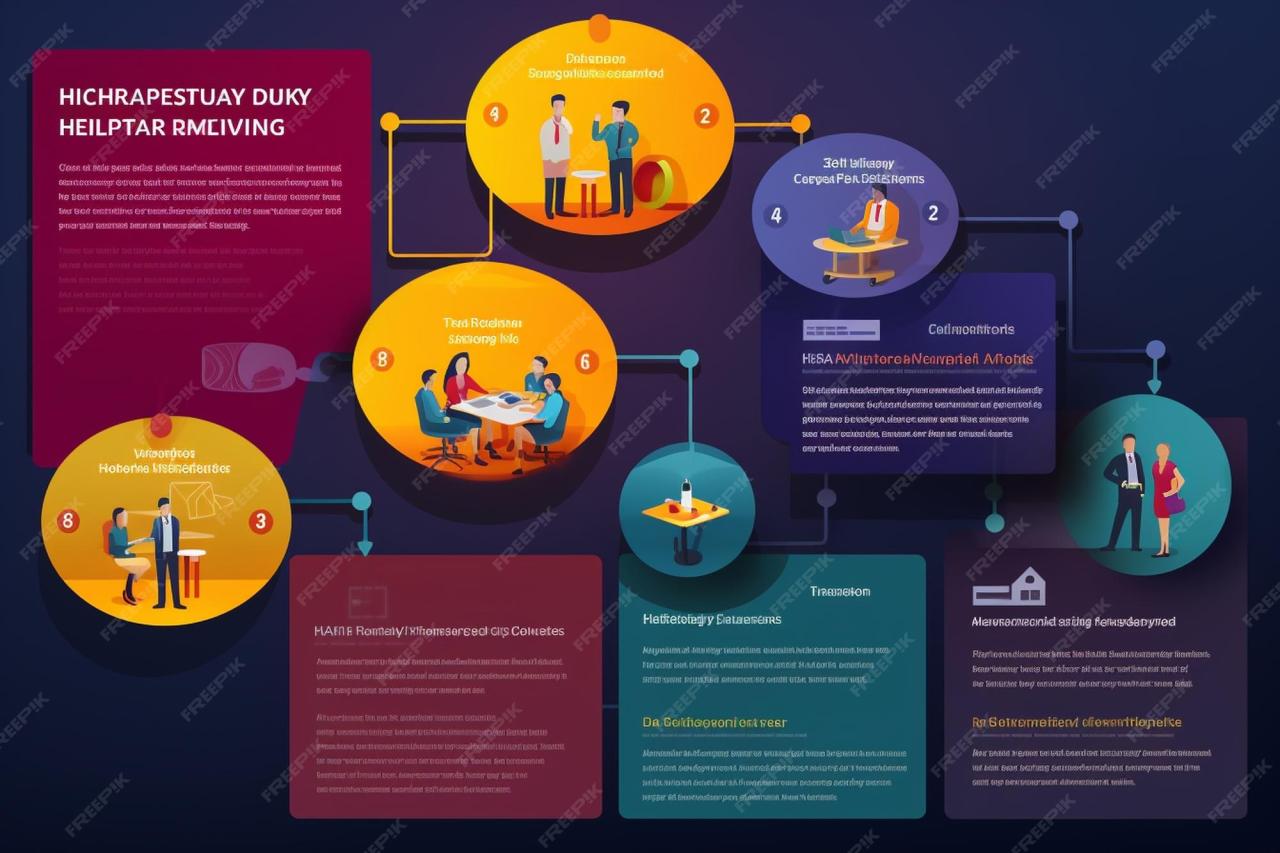
In the rapidly evolving landscape of AI-driven graphic design, establishing best practices ensures the creation of effective and visually compelling infographics. Staying abreast of emerging technologies and understanding how to leverage them can significantly enhance design workflows and output quality. Integrating manual design insights with AI-generated templates opens new avenues for innovation, allowing creators to produce infographics that are both data-rich and aesthetically engaging.
Adopting current best practices involves a strategic approach to selecting AI tools, maintaining consistency, and balancing automation with human creativity. As AI capabilities expand, designers can anticipate more sophisticated features such as real-time data integration, advanced visual element generation, and personalized design adjustments. Keeping pace with these trends requires a proactive stance, continuous learning, and open experimentation with new tools and methodologies.
Combining AI-generated templates with manual refinements fosters unique, high-quality infographics tailored to specific audiences and purposes.
Current Best Practices in AI-Generated Infographic Design
Implementing effective practices when generating infographic templates with AI involves several key steps to ensure clarity, visual appeal, and accuracy. These practices help maximize the benefits of automation while preserving the integrity of the content and the message conveyed:
- Defining Clear Objectives: Establish the purpose of the infographic, target audience, and key messages before initiating the design process. Clear goals guide AI tool settings and customization choices.
- Choosing Appropriate AI Tools: Select AI platforms that support versatile design capabilities, data integration, and user-friendly interfaces. Compatibility with existing workflows and support for customization are crucial factors.
- Maintaining Consistency and Brand Identity: Use AI features that allow for the application of brand colors, fonts, and styles to ensure coherence across visual assets.
- Validating Data and Visual Accuracy: Review AI-generated templates for factual correctness, proportion, and visual balance. Human oversight is essential to avoid misrepresentation or errors.
- Combining AI with Manual Design Enhancements: Leverage AI for initial layout and data visualization, then refine with manual adjustments for nuanced aesthetics and storytelling.
Emerging AI Capabilities and Tools for Infographic Creation
The field of AI is witnessing rapid advancements, offering powerful tools that expand the possibilities of infographic design. These emerging capabilities enable more dynamic, personalized, and interactive visual content:
- AI-Driven Data Visualization: Tools that automatically translate raw data into compelling visual formats, such as interactive charts and heatmaps, facilitating better data storytelling.
- Natural Language Processing (NLP): AI that interprets textual input and generates relevant visual ideas or annotations, streamlining content-to-visual translation.
- Generative AI for Visual Elements: Platforms capable of creating custom icons, illustrations, and backgrounds based on descriptive prompts, reducing the need for stock assets.
- Real-Time Adaptation and Personalization: AI systems that adjust infographic layouts dynamically based on viewer preferences or device specifications, enhancing user engagement.
One notable example includes tools like Canva’s Magic Write and Adobe Firefly, which now incorporate AI features for automated design suggestions and asset generation, significantly accelerating the creation process.
Staying Updated with Technological Advancements
Keeping pace with the rapid evolution in AI technology necessitates a proactive approach that involves continuous learning and engagement with the design community. Some effective procedures include:
- Regular Training and Webinars: Participating in workshops, online courses, and webinars offered by AI tool providers and industry experts ensures familiarity with new features and best practices.
- Following Industry Publications and Updates: Subscribing to newsletters, blogs, and forums dedicated to AI and graphic design helps monitor the latest trends and innovations.
- Engaging in Professional Networks: Connecting with peers through professional associations and social media groups fosters knowledge exchange and collaborative experimentation with new tools.
- Experimenting with Beta Features: Utilizing beta versions of upcoming AI tools provides early insights into future capabilities and allows for feedback that can shape development.
Combining AI Templates with Manual Design Enhancements
Blending automated AI-generated templates with manual design modifications results in more refined and personalized infographics. This approach ensures efficiency without sacrificing creativity:
- Enhance Visual Hierarchy: Use AI to establish initial layouts, then manually adjust element sizes, spacing, and alignment to emphasize key messages.
- Refine Aesthetic Details: Customize colors, fonts, and imagery beyond AI suggestions to align with brand standards and visual preferences.
- Incorporate Unique Data Narratives: Add custom annotations, storytelling elements, or context-specific insights that AI templates may not fully capture.
- Iterate and Test: Conduct usability and aesthetic tests of manually refined infographics to optimize viewer engagement and comprehension.
“Leveraging AI for initial design steps, complemented by manual artistry, creates infographics that are both efficient and uniquely tailored.”
Outcome Summary
In conclusion, mastering how to generate infographic templates with AI provides a powerful advantage in creating captivating visual content efficiently. As AI technology continues to evolve, staying updated with the latest tools and best practices will enable users to produce high-quality, tailored infographics that effectively communicate their message and elevate their digital presence.